跳转至

Handheld Compatibility

SteamOS-like Functionality

Notice: Bazzite uses Handheld Daemon for proper handheld support currently.

Bazzite-Deck images ship with Steam Gaming Mode which is intended to mimic the experience of SteamOS. The goal is to have earlier support for most x86_64 handheld PCs before SteamOS and with the same benefits of the desktop version of Bazzite.

Supported Handhelds

Attention

This list is incomplete and does not indicate that unlisted handhelds do not work with Bazzite currently, but because we lack specific information regarding their post-installation setup, workarounds, and proper hardware support for Linux, they are unlisted here.

All handhelds except for the Steam Deck make use of Handheld Daemon for controls, TDP, etc.

Click the name of each hardware to view post-installation setup and known issues/workarounds.

If your handheld isn't listed in the entries, then it does not necessarily mean that the device is unsupported.

HHD Setup

Attention

HHD is intended and functional for handhelds that are not the Steam Deck.

Read the HHD README for more information.

  1. Double press the 'side menu button' to access Handheld Daemon overlay in Steam Gaming Mode

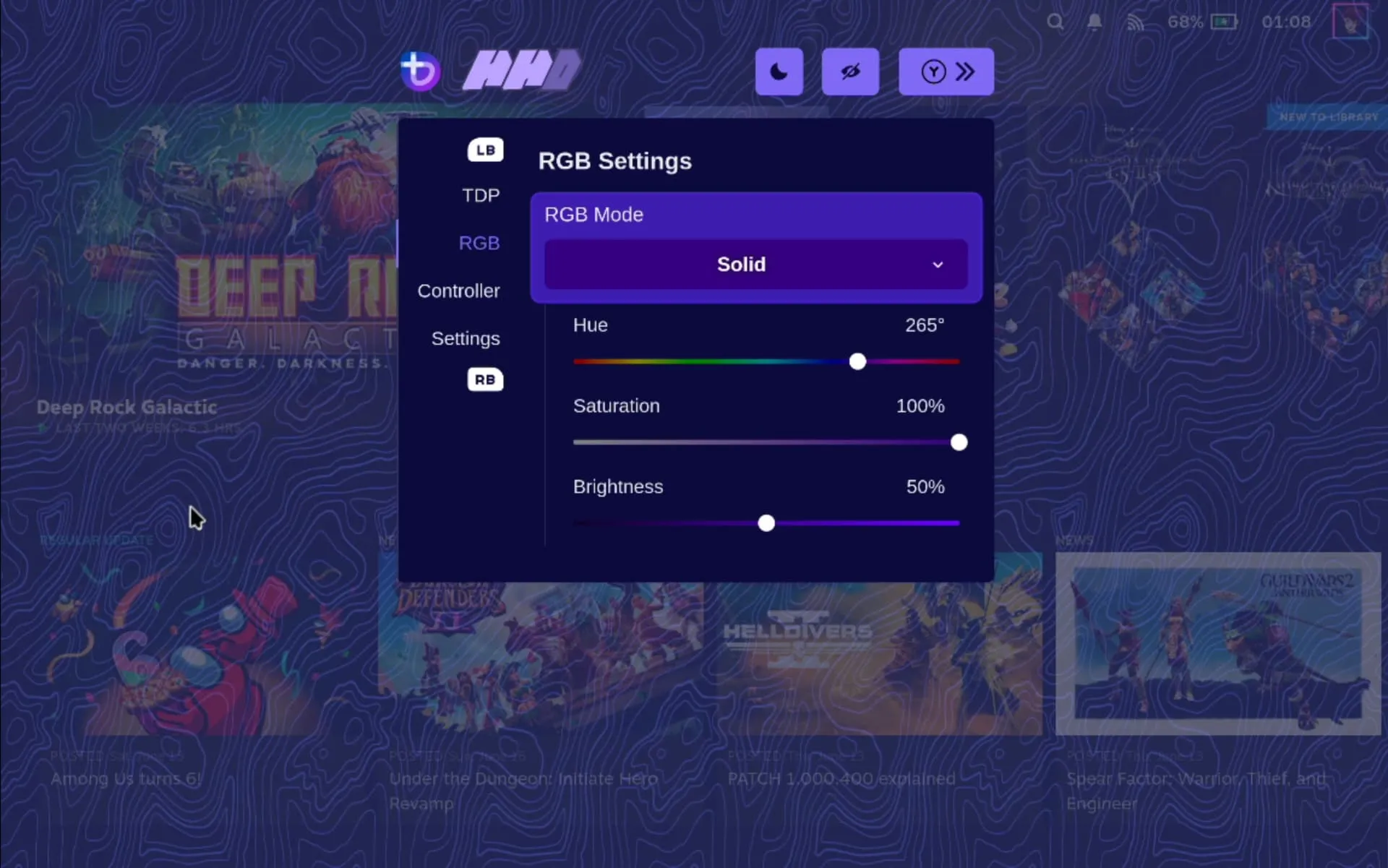
  2. Select the controller emulation and RGB color you want

Note

Gyro functionality requires DualSense emulation

TDP Controls

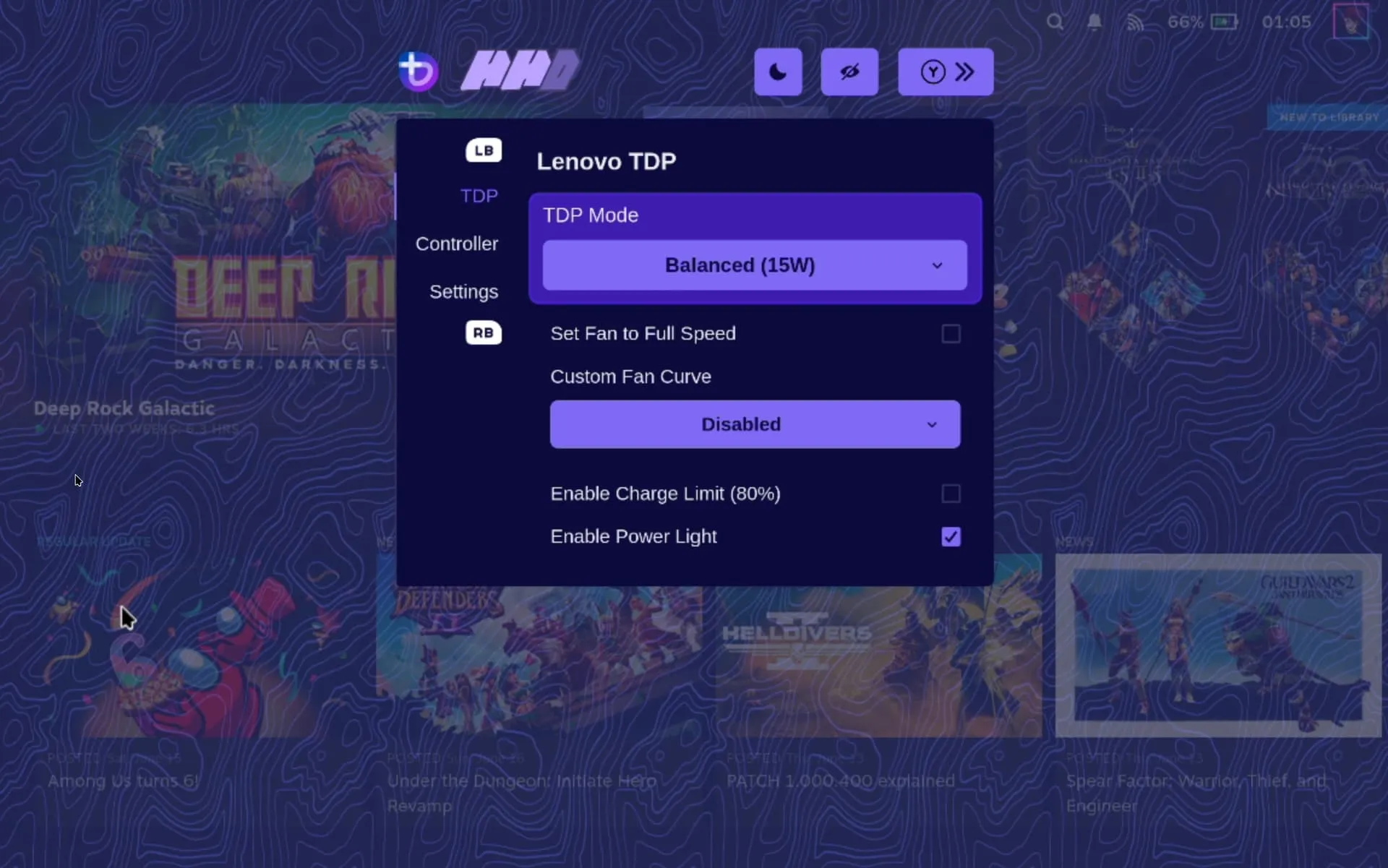
TDP|690x431, 75%

There are a few options for TDP Controls that work with Bazzite:

  • The HHD-overlay supports TDP controls. (Primary Supported Method)
  • Also has a desktop app that is pre-installed, look for the Handheld Daemon app in Desktop Mode.
  • SimpleDeckyTDP supports TDP, GPU, Power Governor, and among other settings.
  • Also has a graphical application, but needs to be manually installed.
  • PowerControl supports TDP, GPU, and fan controls on select devices.

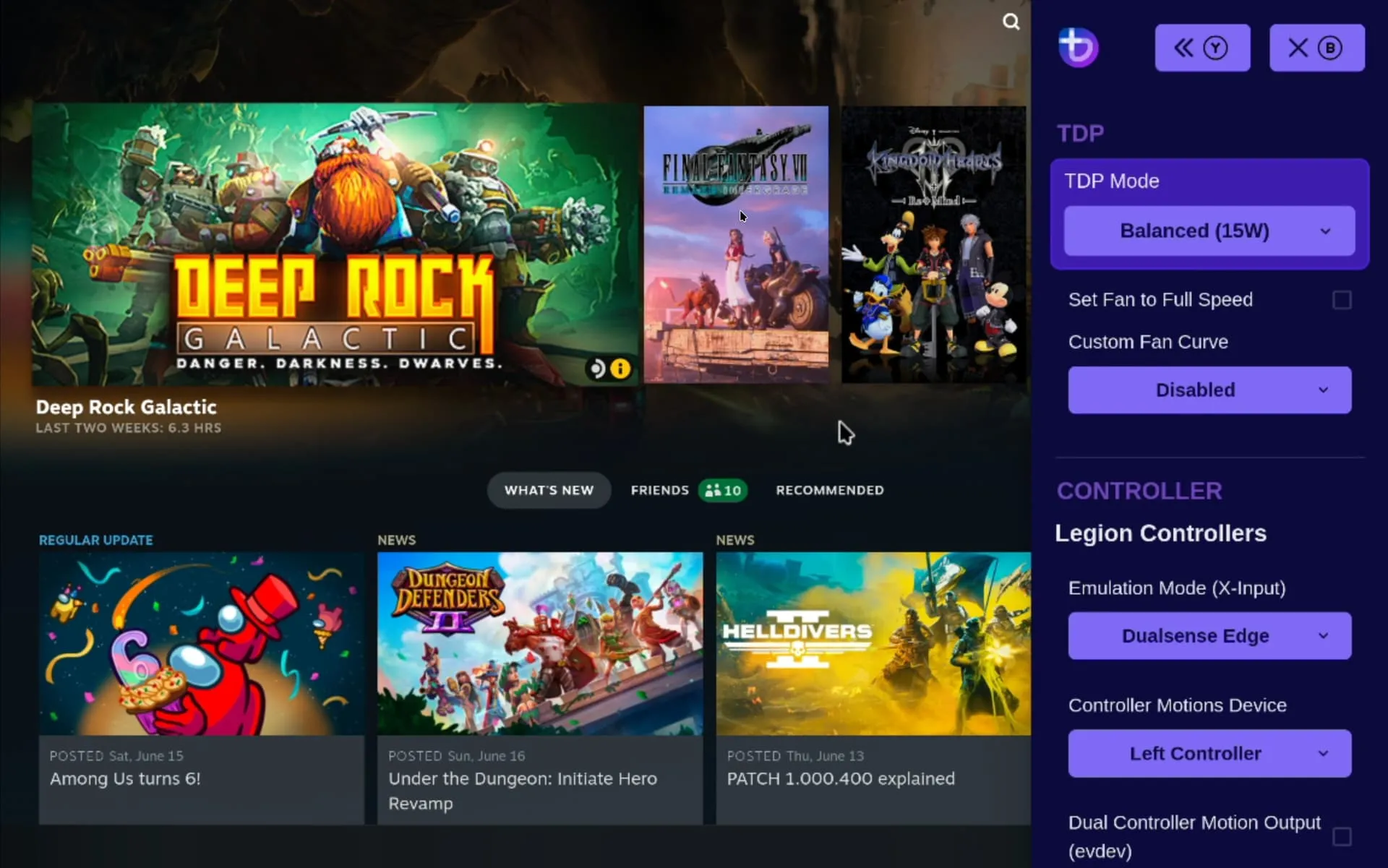
How do I open the HHD Overlay?

Overlay|690x431, 75% RGB|690x431, 75%

Press, hold, or double-tap the Quick Access Menu button.

Controller Information

For most handheld hardware, besides the Steam Deck, emulation of a DualSense controller is used for full functionality. Double tap or hold the side menu button to access settings for controller emulation including switching to an Xbox controller with reduced functionality.

If your device has paddles, you will want to use the DualSense Edge controller (excluding the Ayn Loki). It’s disabled by default because some games do not map it correctly.

Some games and emulators may need Steam Input disabled to work correctly with your controls.

Desktop Controls

desktop_controls_step_1|588x500, 75%

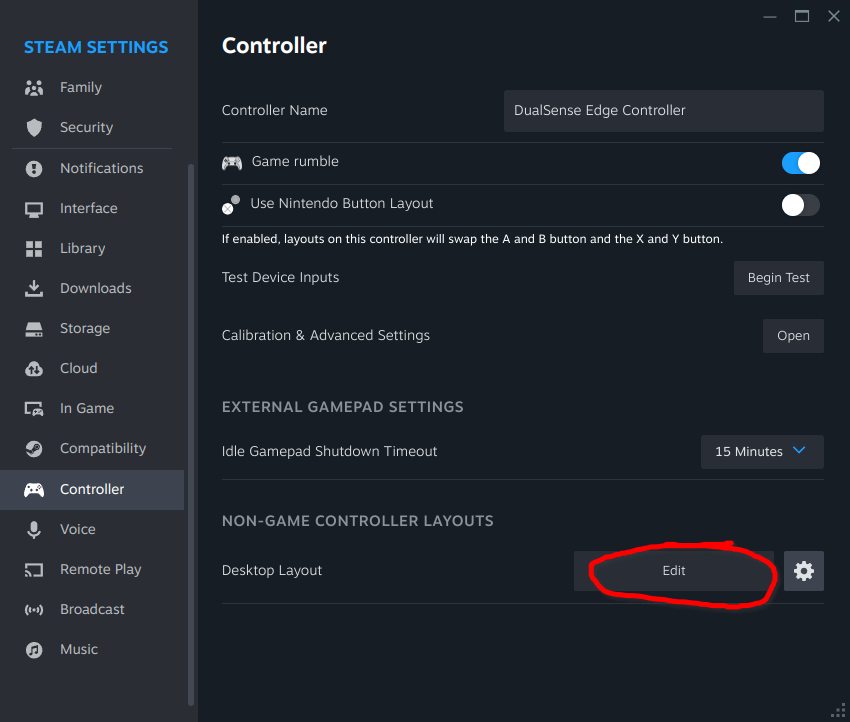
Desktop controller layout may not exist by default if Steam doesn't setup your handheld controller properly. This can be fixed in Steam's controller settings.

The virtual keyboard is Steam's on-screen keyboard, but needs to be setup in Steam's settings in Desktop Mode. There is no default keybinding for Steam's on-screen keyboard (Remap it to X or whatever you prefer). Desktop controller layout may not exist by default if Steam doesn't setup your handheld controller properly. This can be fixed in Steam's controller settings

Decky Setup

To install Decky Loader, open a host terminal and enter:

ujust setup-decky

You can access Decky Loader by pressing the 'side menu button', also known as the Quick Access Menu (QAM), once from within Steam Gamemode or Steam Big Picture Mode.

The Quick Access Menu is accessible from the keyboard with Control + 2, or with an external controller using Xbox/PS button + A/X.

Decky Plugins

Attention

Decky may break or uninstall after updates especially if there is an update.

Install optional Decky plugins for your handheld. If you experience any major issues then it is recommended to uninstall Decky before reporting Bazzite bugs.

Unsupported Handhelds

Note

Certain handhelds have been confirmed to boot Bazzite, but are plagued by missing driver support for Linux including missing audio drivers.

Unsupported handhelds could work with Bazzite, but there may be major issues encountered that are undocumented. If your handheld hardware is not listed, then you can still give Bazzite a try with our Bazzite-Deck image.

Your mileage may vary with untested hardware. Bazzite does not have the required setup for unsupported handheld, so setup will be manually done by the end-user for different functionality if it even works properly on the unsupported device.

e-GPU Caveats:

  • The same GPU hardware requirements that apply for Steam Gaming Mode also apply for e-GPUs.
  • Nvidia GPUs are unsupported but may work if rebasing to a Nvidia -deck image with a potential for outstanding bugs.

General Linux e-GPU Guide + Script