启动选项与环境变量
前言
如今的 Linux 游戏体验,已经比几年前直观和成熟得多。不过在汽核 OS 中,依然可以通过一些高级启动选项和额外配置来进一步调整游戏行为。本指南会展示一些可在汽核 OS 上使用的进阶游戏调优示例。
DXVK、MangoHud 与 vkBasalt 配置模板
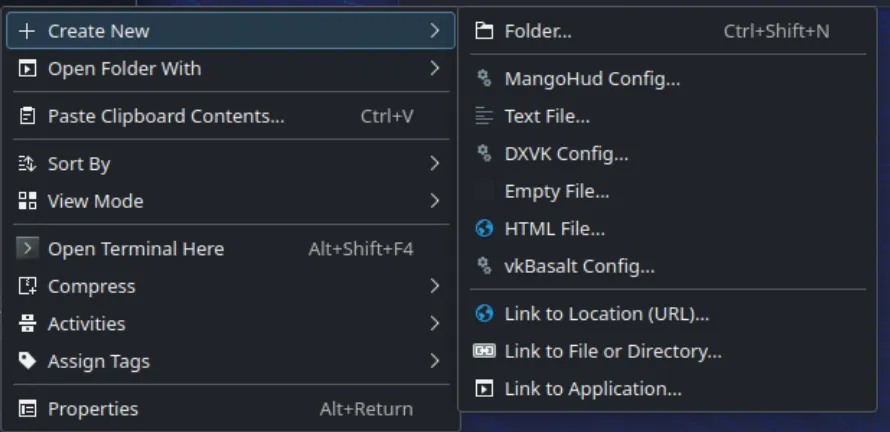
汽核 OS 为部分预装工具提供了配置模板,你可以在文件管理器空白处右键来访问它们。除此之外,也可以使用像 Mango Juice 这样的图形化工具来配置 MangoHud。
Steam 启动选项与快捷命令
Steam 启动选项允许你在游戏启动时传入环境变量、参数和命令。汽核 OS 还提供了一些快捷方式和体验层面的改进,用来简化常见启动选项的使用,特别适合掌机设备。
常见启动选项格式
大多数 Steam 启动选项都遵循这样的格式:ENVIRONMENT_VARIABLES command_or_script %command%
%command%代表游戏可执行文件,必须保留- 环境变量应写在
%command%之前 - 额外参数可以写在
%command%之后
示例:
PROTON_LOG=1 %command%                    # Enable Proton logging
SteamDeck=0 %command%                     # Disable Steam Deck mode
PROTON_ENABLE_NGX_UPDATER=1 %command%     # Enable DLSS updates
汽核 OS 的启动选项快捷方式
汽核 OS 提供了几种快捷写法,用于简化常见启动选项:
用于控制 Steam Deck 模式
sd0 %command%:这是SteamDeck=0 %command%的缩写- 会关闭某些 Steam Deck 专用特性,避免它们与你当前配置冲突
- 例如:《Expedition 33》如果不设置
SteamDeck=0,会隐藏大部分图形选项,并强制使用低于最低档的设置
面向 NVIDIA 用户(dlss-swapper)
dlss-swapper %command%:启用最新的 DLSS 预设,并配合 NGX updater 使用- 等价于:
PROTON_ENABLE_NGX_UPDATER=1 DXVK_NVAPI_DRS_SETTINGS=NGX_DLSS_SR_OVERRIDE=on,NGX_DLSS_RR_OVERRIDE=on,NGX_DLSS_FG_OVERRIDE=on,NGX_DLSS_SR_OVERRIDE_RENDER_PRESET_SELECTION=render_preset_latest,NGX_DLSS_RR_OVERRIDE_RENDER_PRESET_SELECTION=render_preset_latest %command% dlss-swapper-dll %command%:与上面类似,但会跳过 NGX updater
在哪里设置启动选项
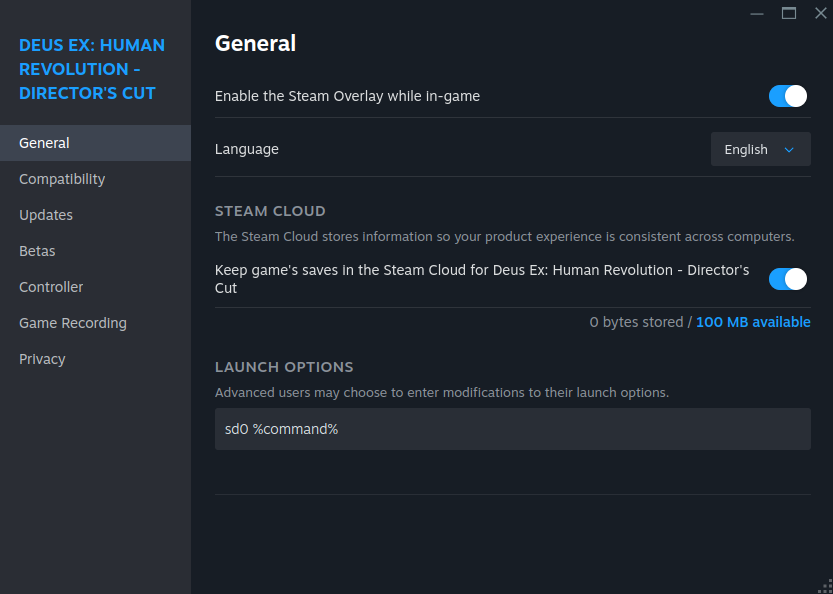
- 在 Steam 游戏库中右键点击目标游戏
- 选择 Properties(属性)
- 在 General(常规) 标签页中找到 Launch Options(启动选项)
- 输入你需要的启动参数
帧率限制问题与表现不一致
在使用 Gamescope 时,可以通过多种方式限制帧率。但遗憾的是,不是每一种方法都适用于所有环境、游戏或硬件配置。
尤其是在桌面模式下设置帧率限制时,实际表现可能会出现不少不一致。
下面的表格列出了不同帧率限制方式的行为差异。
Steam 游戏模式(Steam Gaming Mode 会话)
| Method | Setup steps | Requires V-Sync On In-Game? | Change limit without restarting game? | Latency | Preferred | Notes |
|---|---|---|---|---|---|---|
| Gamescope FPS limiter | Use Quick Access Menu > Performance > Framerate Limit | No | Yes | Meh | Preferred | Automatically turns v-sync on at driver-level whenever the framerate cap is enabled. Additional latency will be introduced. |
| MangoAPP (embedded) | N/A - doesn't work at all. | - | - | - | – | Frame limiter settings from mangoapp are ignored in game mode/deck mode. Use the slider or external mangohud instead. |
| MangoHUD (external) | Launch Options: MANGOHUD=1 %command% |
No | Yes | Meh | – | Set fps_limit=0,30,60,120... (0=no cap) in MangoHud.conf. May clash with MangoAPP. |
| DXVK/VKD3D runtime frame limiter | DXVK (D3D8/9/10/11): DXVK_FRAME_RATE={fps} %command%VKD3D-Proton (D3D12): VKD3D_FRAME_RATE={fps} %command% |
No | No | Best | – | Applies only to DXVK/VKD3D titles (no effect on native OpenGL or native Vulkan). |
桌面模式(GNOME / KDE Plasma 桌面会话)
| Method | Setup steps | Requires V-Sync On In-Game? | Change limit without restarting game? | Latency | Preferred | Notes |
|---|---|---|---|---|---|---|
| Gamescope FPS limiter | Launch Options: gamescope -r {fps} -- %command% / --framerate-limit {fps} |
Yes | Yes | Meh | – | Use gamescopectl debug_set_fps_limit {fps} to change the limiter value live without restarting. |
| MangoAPP (embedded) | Launch Options: gamescope --mangoapp -- %command% |
Yes | Yes | Meh | – | Caps are sometimes not effective. Set fps_limit=0,30,60,120... (0=no cap) in MangoHud.conf (or via MANGOHUD_CONFIG=...). Add show_fps_limit to preset to see in game. Change with ShiftL+F1. |
| MangoHUD (external) | Launch Options: MANGOHUD=1 gamescope -- %command% |
No | Yes | Meh | Preferred | Caps are almost always effective. Set fps_limit=0,30,60,120... (0=no cap) in MangoHud.conf (or via MANGOHUD_CONFIG=...). Add show_fps_limit to preset to see in game. Change with ShiftL+F1. |
| DXVK/VKD3D runtime frame limiter | DXVK (D3D8/9/10/11): DXVK_FRAME_RATE={fps} %command%VKD3D-Proton (D3D12): VKD3D_FRAME_RATE={fps} %command% |
No | No | Best | – | In-process/API-level caps; excellent timing, but you must restart to change. |
如果你的帧率限制器没有生效,通常可以尝试下面几步:
- 关闭自适应同步 / VRR,或从 gamescope 参数中移除
--adaptive-sync - 将游戏内的垂直同步设为 “on”
使用 ScopeBuddy 进行高级启动选项管理
如果你需要更复杂的启动选项管理,可以继续参考 ScopeBuddy 文档,它提供了更高级的 Gamescope 启动选项管理方式。