安装故障排查
下载 ISO
如果直接下载失败或速度太慢,可以使用 Motrix 之类的下载管理器。
磁盘
务必只选择正确的目标磁盘,避免误删其他磁盘上的数据。继续安装前,建议先安全移除不需要参与安装的外接磁盘。
“Failed to open \EFI\BOOT\mmx64.efi - Not Found” 错误
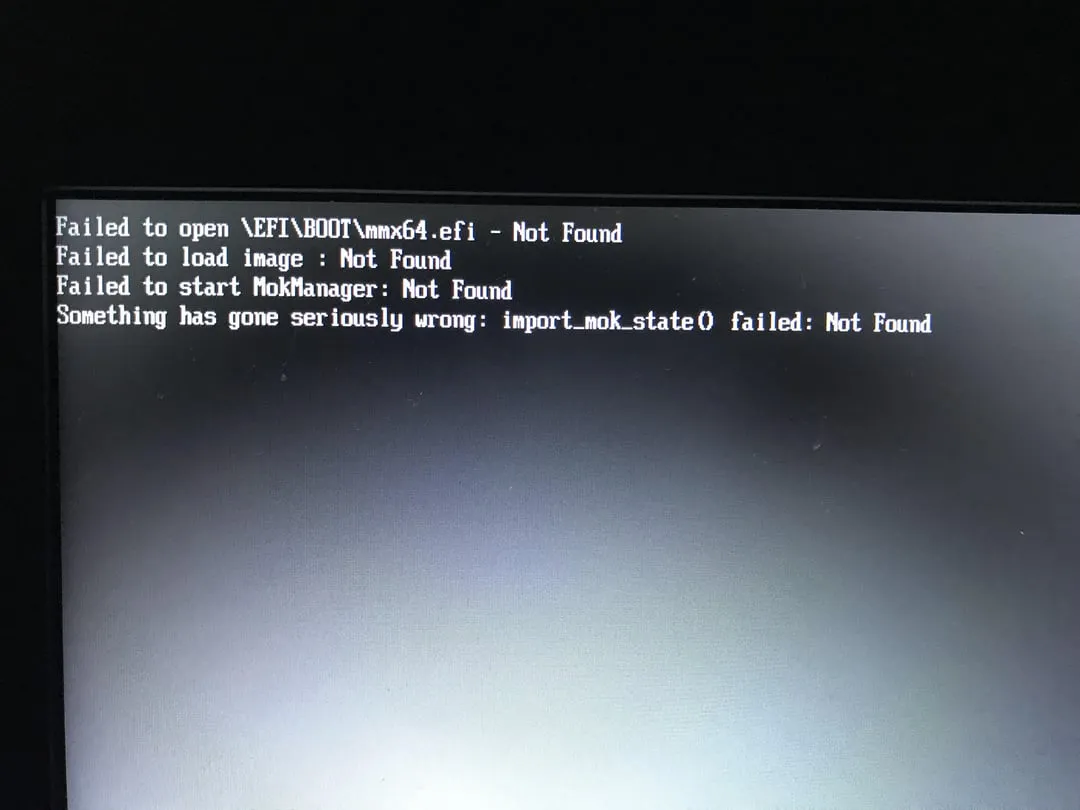
要绕过这个问题,可以从文件启动。进入 UEFI(BIOS),选择安装了汽核 OS 的 EFI 分区,然后选择 /EFI/fedora/grubx64.efi 启动。
之后启动管理器应能正常启动,并显示 FEDORA 选项。
安装器无法启动
Note
如果 BIOS 使用 CSM Legacy 启动而不是 UEFI,新安装器可能无法启动。更多信息请阅读系统要求。
错误代码 1
The "code 1" error is a generic error code that appears during installation when a more specific error message isn't available. This error can occur in several scenarios that we have identified so far but there may be more scenarios:
- Existing Linux Installation: If you've previously installed another Linux on the same drive, the installer might fail when installing the bootloader with a 'bootloader write config' error.
- This can happen even if the previous Linux installation is no longer functional. It is known to occur with both Fedora-based (Fedora, Fedora Atomic, Bazzite, Nobara, etc.) and Ubuntu-based (Ubuntu, Mint, PopOS, etc.) distros.
- Fix 1: Separate drive: If your hardware supports more than 1 SSD, install Bazzite on a different drive that has not seen Linux before.
- Fix 2: Manually remove the existing Linux from the EFI: Please see below for instructions.
- Fix 3: Delete the existing EFI partition on the drive: If you are NOT planning on dual-booting, use GParted or Disks to remove the existing EFI.
- Warning: This is irreversible and will remove every other operating system on the drive, including Windows
- Fix 4: Create a new EFI partition: You can use manual partitioning as described in the Manual Partitioning Guide to create a new EFI partition alongside the existing one to accomplish this.
- Warning: some BIOSes cannot handle a second EFI partition on the drive.
- Incorrect Filesystem: Using the EXT4 or any other filesystem type for the root partition will cause this error. You must use BTRFS for the root partition.
- Corrupted ISO Image: Ensure the ISO image isn't corrupted by calculating the checksums.
- Overheating USB Flash Drive: Use a USB 3.0 or better flash drive and plug it into a USB 3.0 or better port to avoid overheating.
"No Space left on Device" Error
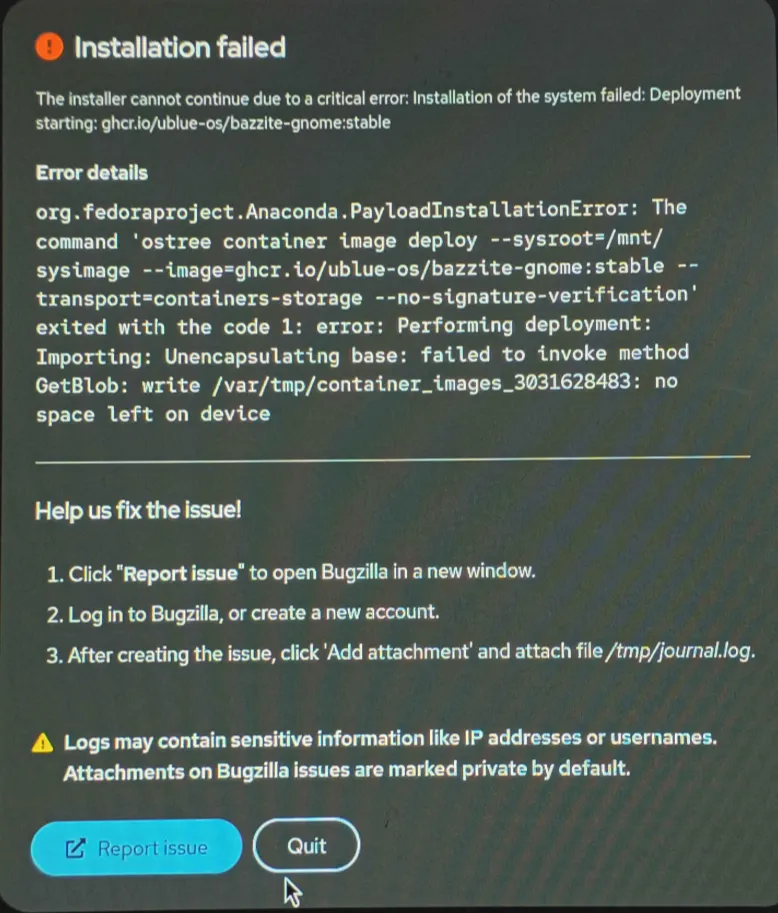
This error can misleadingly appear when the system does not have enough RAM for the installer to operate. You need at least 8GB of system memory to install Bazzite.
"Bad shim signature, you need to load the kernel first" error
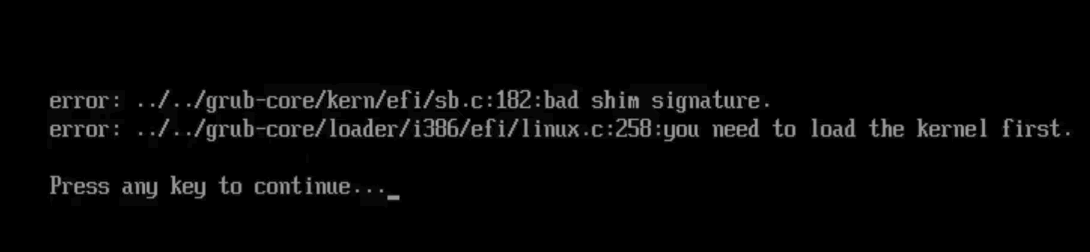
Disable Secure Boot in BIOS to get past this screen. If you wish to use Secure Boot, follow the Secure Boot Guide using method B.
Video Guide:
https://www.youtube.com/watch?v=Z_DsWqTuipU
"Device is Active" Error
This error occurs when the installer encounters a BitLocker encrypted partition. You have two possible options:
A. If Dual Booting: Shrink the partition in Windows before installing, enough to have enough room for a Bazzite install. B. Bazzite Only: Delete the BitLocker partition using a tool like GParted before installing.
Watch this video for a demonstration:
https://www.youtube.com/watch?v=FBGLLkIKp-w
"Error checking storage configuration"
Watch this video for a workaround:
https://www.youtube.com/watch?v=VTnm9EiBdPA
Unable to allocate requested partition scheme error
This error occurs when installing on drives larger than 2TB where the first 2TB or more is already occupied by one or more partitions. The image below illustrates the error message.
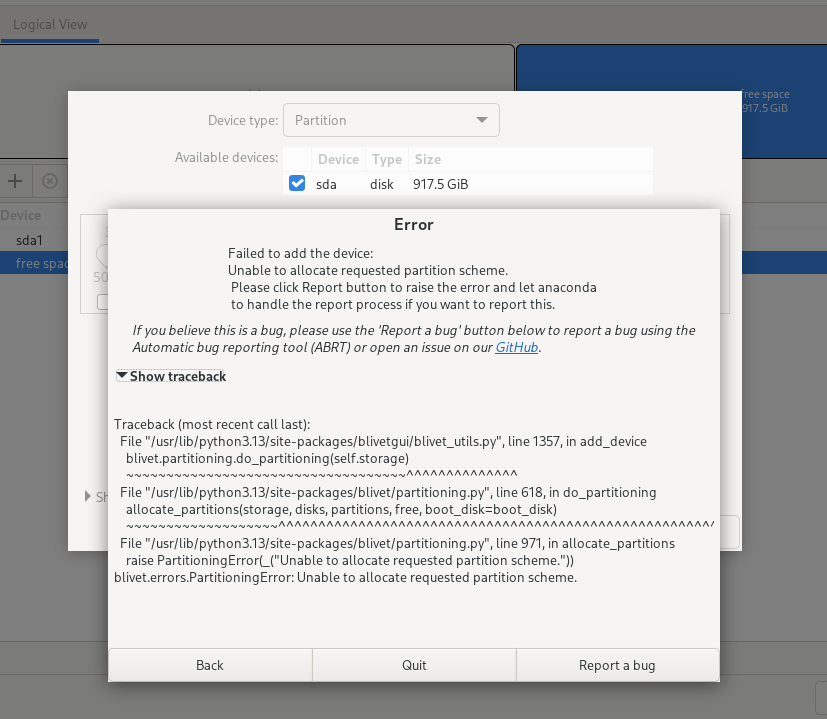
It seems like the Anaconda installer cannot create any partitions after the 2TB mark.
Here are some possible solutions on how you can address it:
- Install Bazzite on a different storage device where Bazzite can have the entire drive.
- If you're dual booting with Windows, reduce the size of your Windows partition to under 2TB. If Windows' Disk Management can't do this, consider using a third-party tool like EaseUS Partition Master to resize the partitions while Windows is not running.
- If the drive contains no important data, you can delete all existing partitions and restart the installation process.
Alternative Installation Method
Note
The alternative installation method is useful for downloading a smaller ISO and may resolve other issues, but also contains display issues in the installer on most handheld displays.
If none of the above errors are relevant to your issue, or you still have problems installing Bazzite, then try following our alternative installation method:
Try installing Bazzite by rebasing from Fedora Kinoite (KDE Plasma) or Fedora Silverblue (GNOME).
How to remove an orphaned copy of GRUB
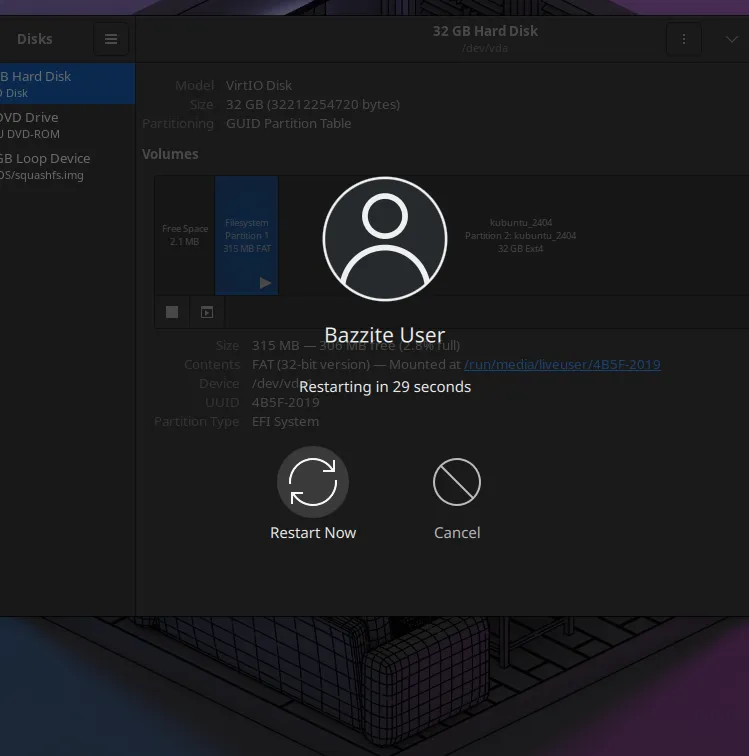
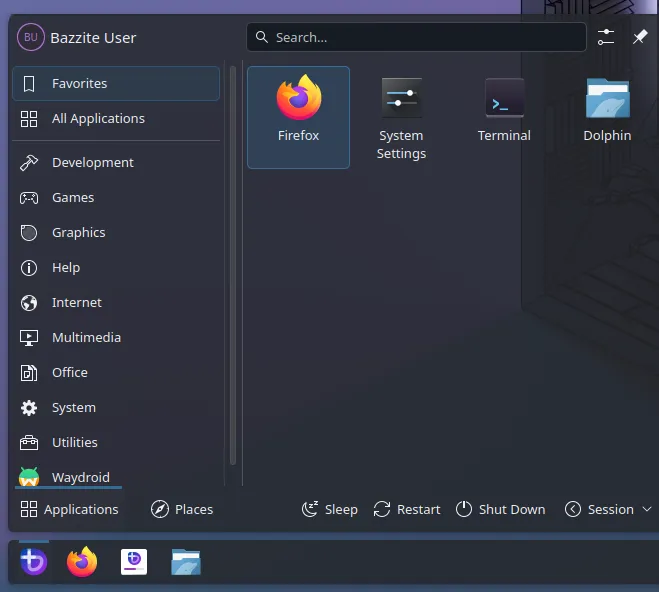
- Boot into the Bazzite installer (the Legacy Installer will not work for this) and open the Application Menu
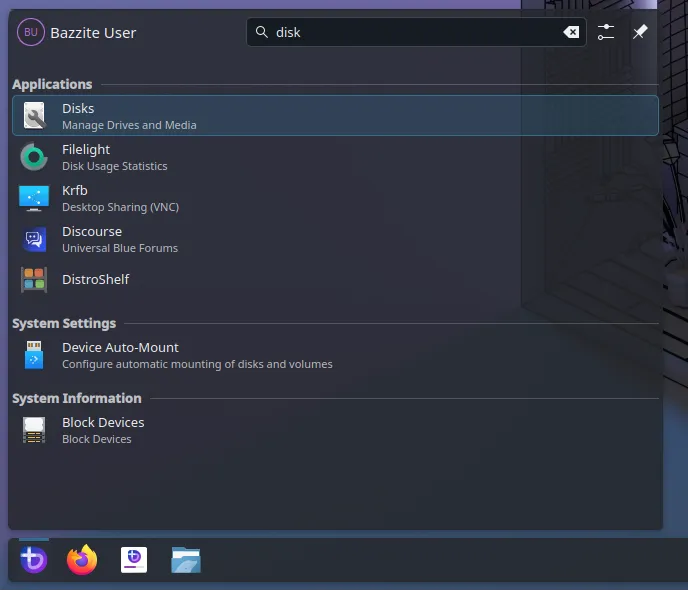
- Type 'disk' and open the Disks app
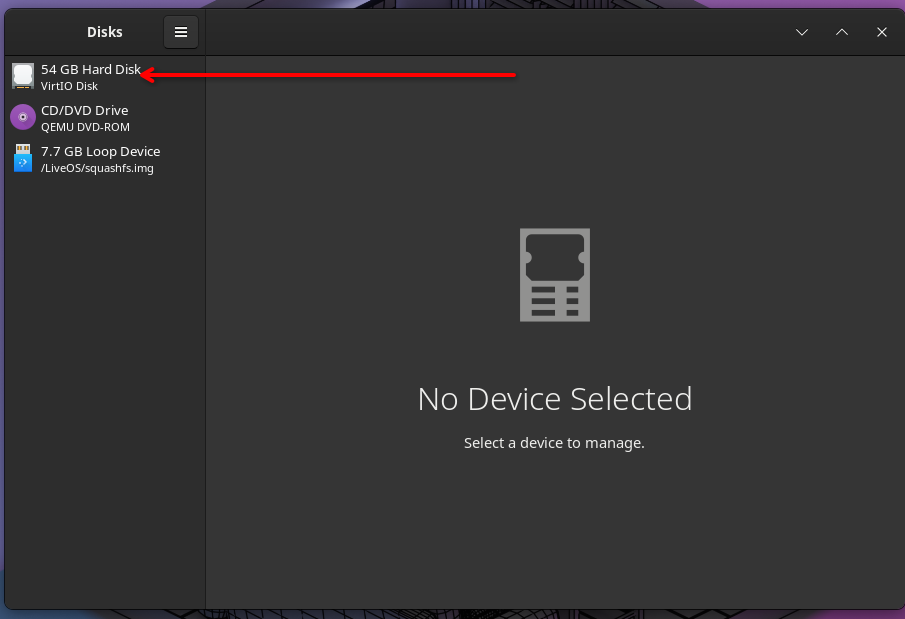
- Select the drive you want to install Bazzite on
- Identify your EFI partition, it will be of filesystem type FAT and typically very small
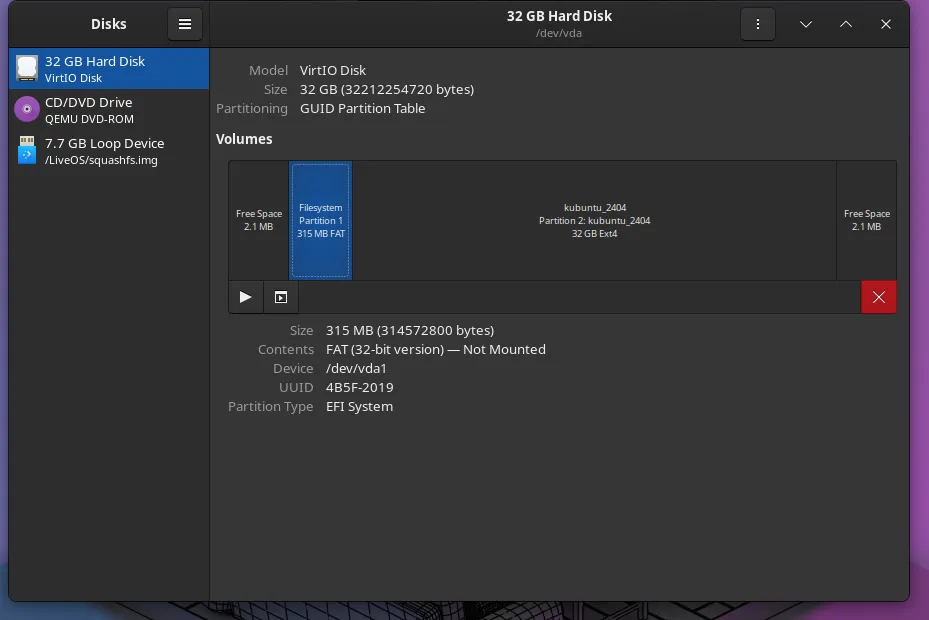
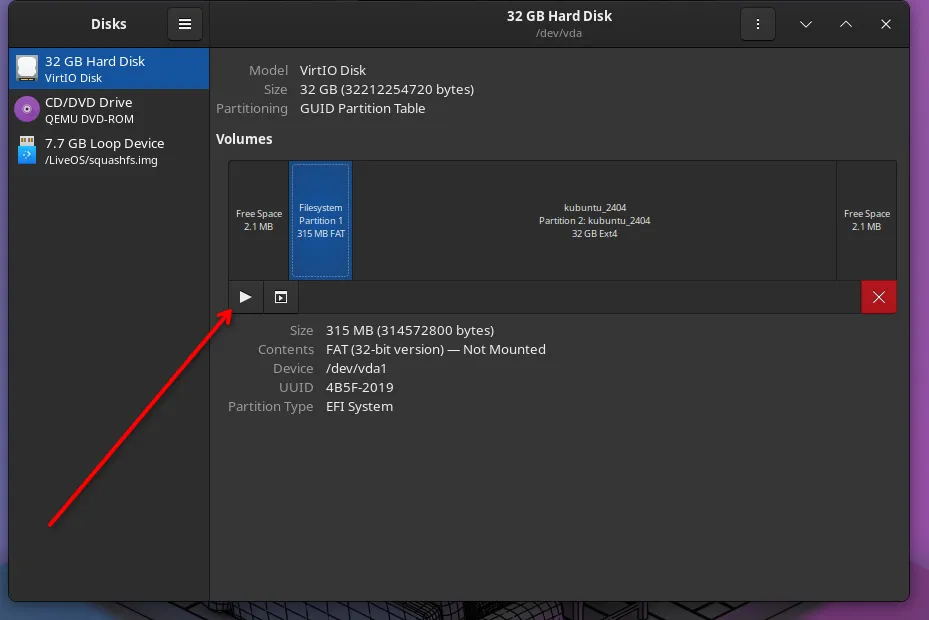
- Mount the EFI partition (if it's not already mounted) by clicking on the Play button
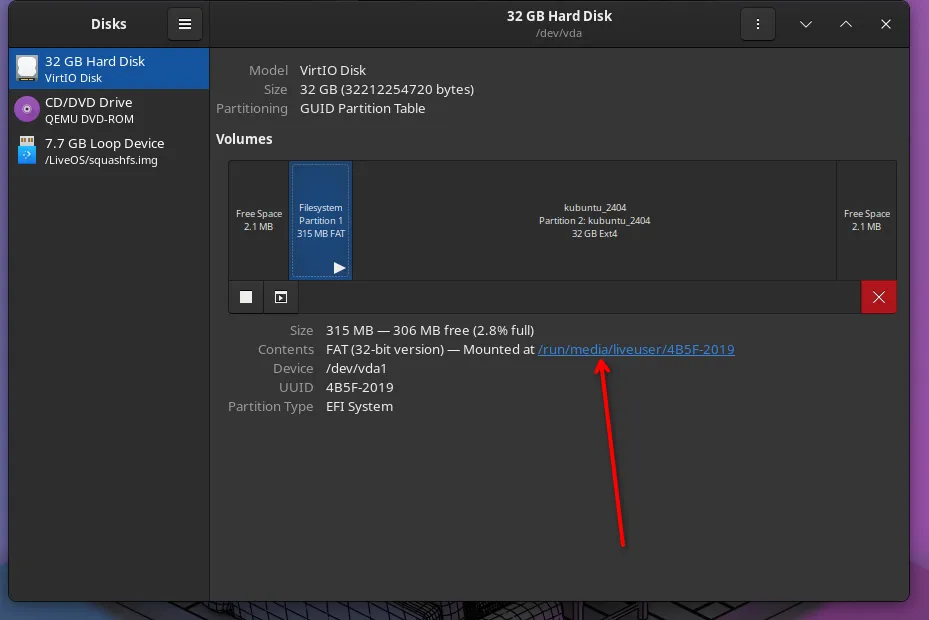
- Click on the blue writing next to 'mounted at'
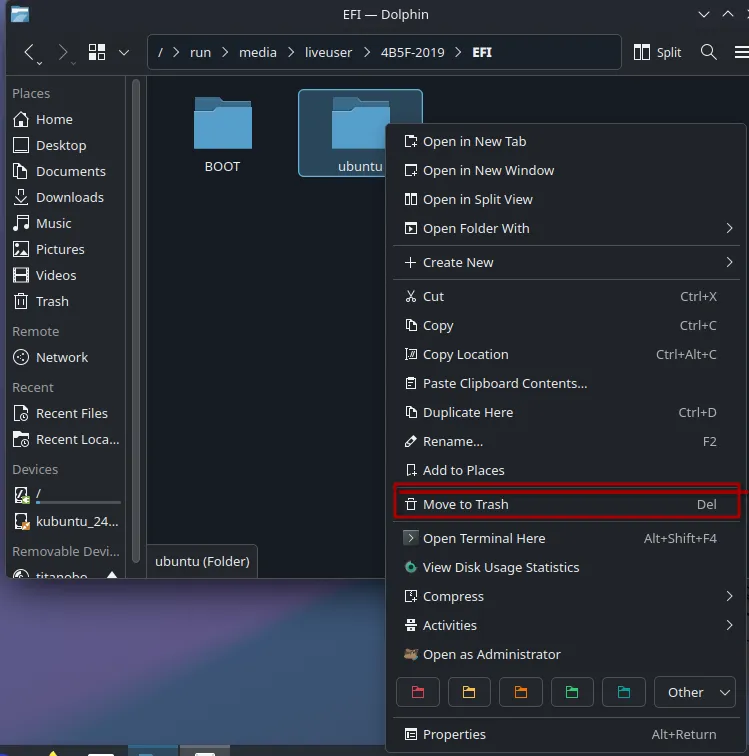
- Double-click on the EFI folder
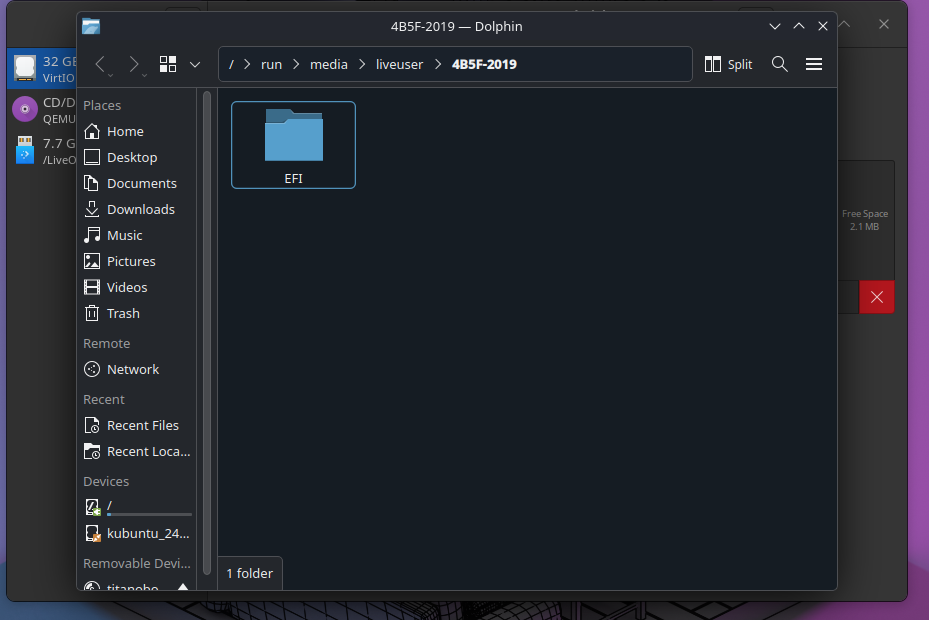
- Identify the 'Ubuntu' or 'Fedora' folder and move it to the trashcan
Warning
Do not remove any other folders, such as Boot, Dell, HP, or Microsoft, or Windows may fail to boot properly!
- Reboot, and run the installer again. You might want to delete the partitions that were created during the first install attempt.