Installing Bazzite for Desktop Hardware

Note
This installation guide is for the legacy ISO and an updated guide for the new ISOs will be coming soon.
Pre-Installation
Pre-requisites and steps before installing Bazzite.
Minimum System Requirements
- Architecture: x86_64
- Firmware: UEFI (CSM/Legacy boot UNSUPPORTED)
- Processor (CPU) : 2GHz quad core processor or better
- System Memory (RAM): 8GB
- Graphics: A graphics card that can utilize Vulkan 1.3+
- Storage: 64GB free on an internal solid-state drive
- Network: Stable internet connection with no bandwidth caps
- Additional Notes: Certain drivers are not compatible with Bazzite
- For example: a list of compatible USB Wi-Fi adapters
Installer Requirements
{% include 'installer_requirements.md' %} - Physical keyboard
{% include 'desktop_envs.md' %}
Dual Boot Preliminary Setup + Post-Setup Guide
Read the Dual Boot Guide after reading this guide before proceeding.
Warning
Warning for Dual Boot Users: It is highly recommended to physically disconnect the storage drive that has Windows installed on it during the Bazzite installation process. This prevents accidental data loss or modification of your Windows installation. You can reconnect the Windows drive after successfully installing Bazzite.
Installation Guide
The part of the guide that requires the most effort.
1. Download and Flash Bazzite
- Download Bazzite after choosing the correct ISO for your hardware with our Image Picker tool.
- Flash Bazzite to your bootable medium.
- Eject drive.
Current Fedora Atomic Desktop Users
Current Fedora Atomic Desktop users can rebase with the terminal command listed on the website under the "Existing Fedora Atomic Desktop Users" section and can skip the next step.
2. Boot Bazzite
- Connect your bootable medium to your device and boot into it.
- After connecting the device, boot into the Bazzite installer.
- This depends on your motherboard hardware, but most of the time it could be a function keys like F9 or similar.
- Sometimes you need to consult the manual, look up your device online, or read any hotkeys that appear when you boot your PC.
- Alternatively change the BIOS settings to boot with your bootable device first before your current storage, but this is not recommended to keep enabled after installing Bazzite.
- Verify the media correctly and proceed to the installer.
3. Installer


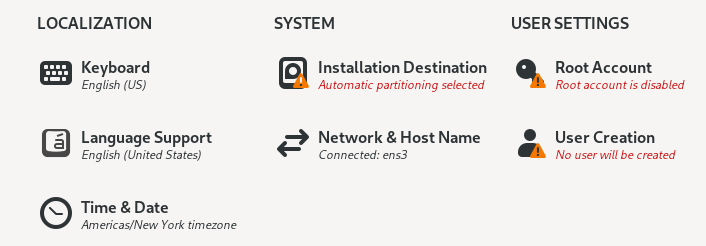
- Select your language, region, keyboard layout, and time zone.
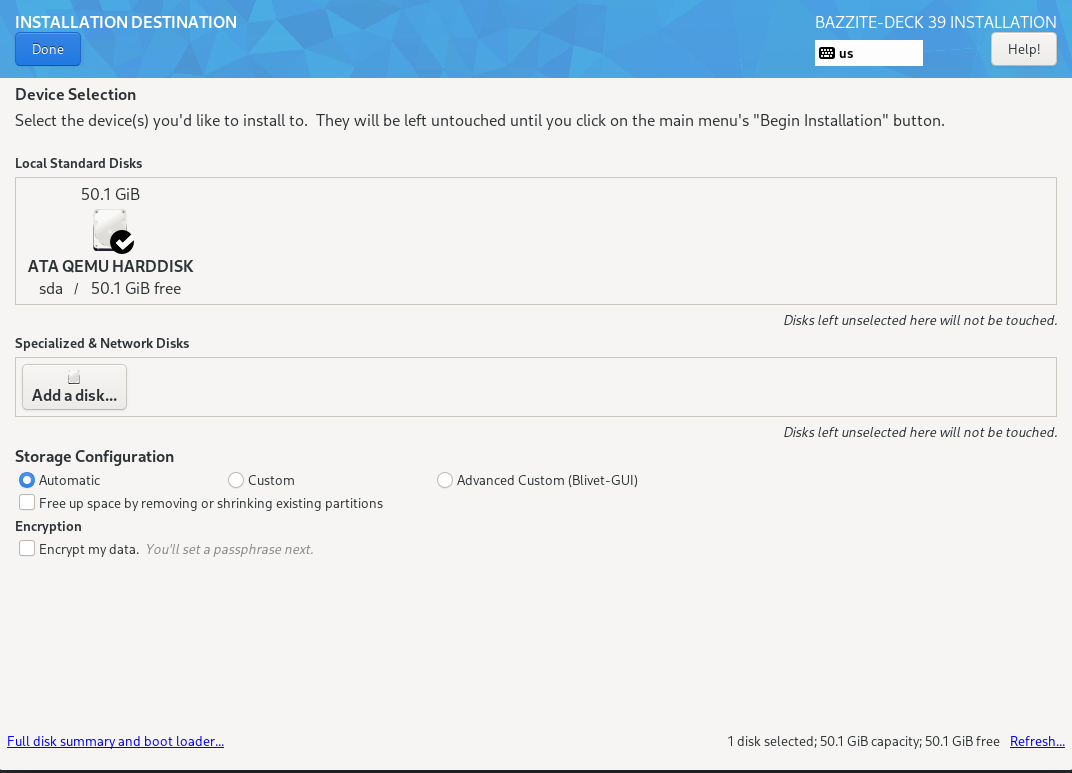
- Select the drive that Bazzite is going to be installed on.
- Delete any partitions that you have remaining on the drive unless dual booting on the same drive.
- Recommended to use the automatic storage configuration unless dual booting on the same drive.
- Optionally encrypt the drive with a password if desired.
- If you lose this password, then it cannot be decrypted.
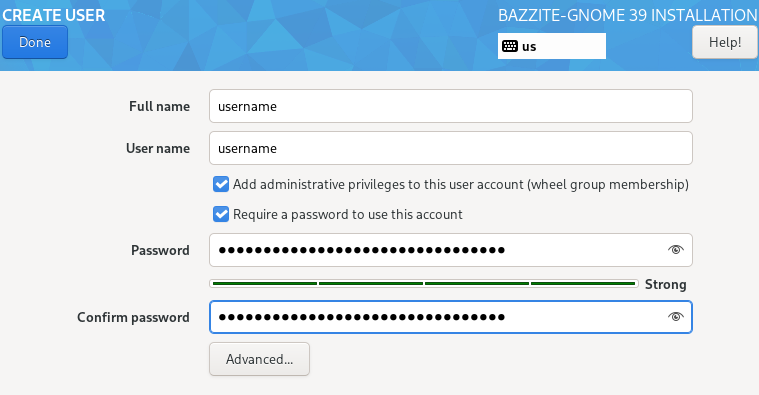
- Setup a user account.
- Give administrative privileges and set a user password.
- Begin the installation.
- Reboot device after it has finished installing.
Important information for users with Secure Boot enabled:
Read the Secure Boot Guide for more information.
Post-Installation
The fine tuning before gaming.
GRUB Menu

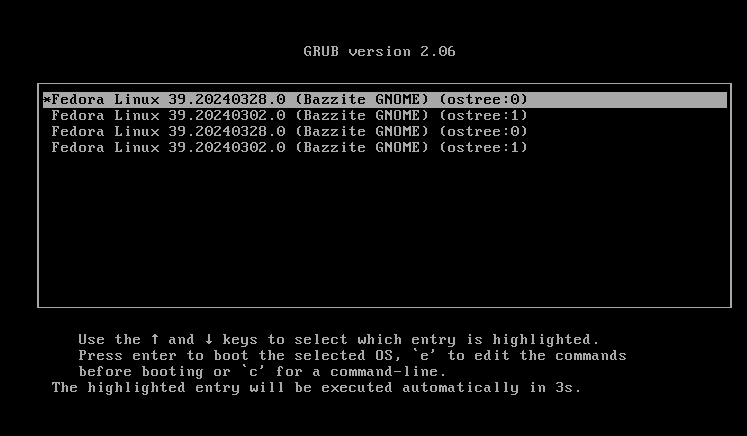
The first boot will show a screen showing your current and last deployment. It is important to note that the GRUB menu can be used to rollback Bazzite deployments if you encounter issues.
Read more about this in the Updates, Rollback, and Rebasing documentation.
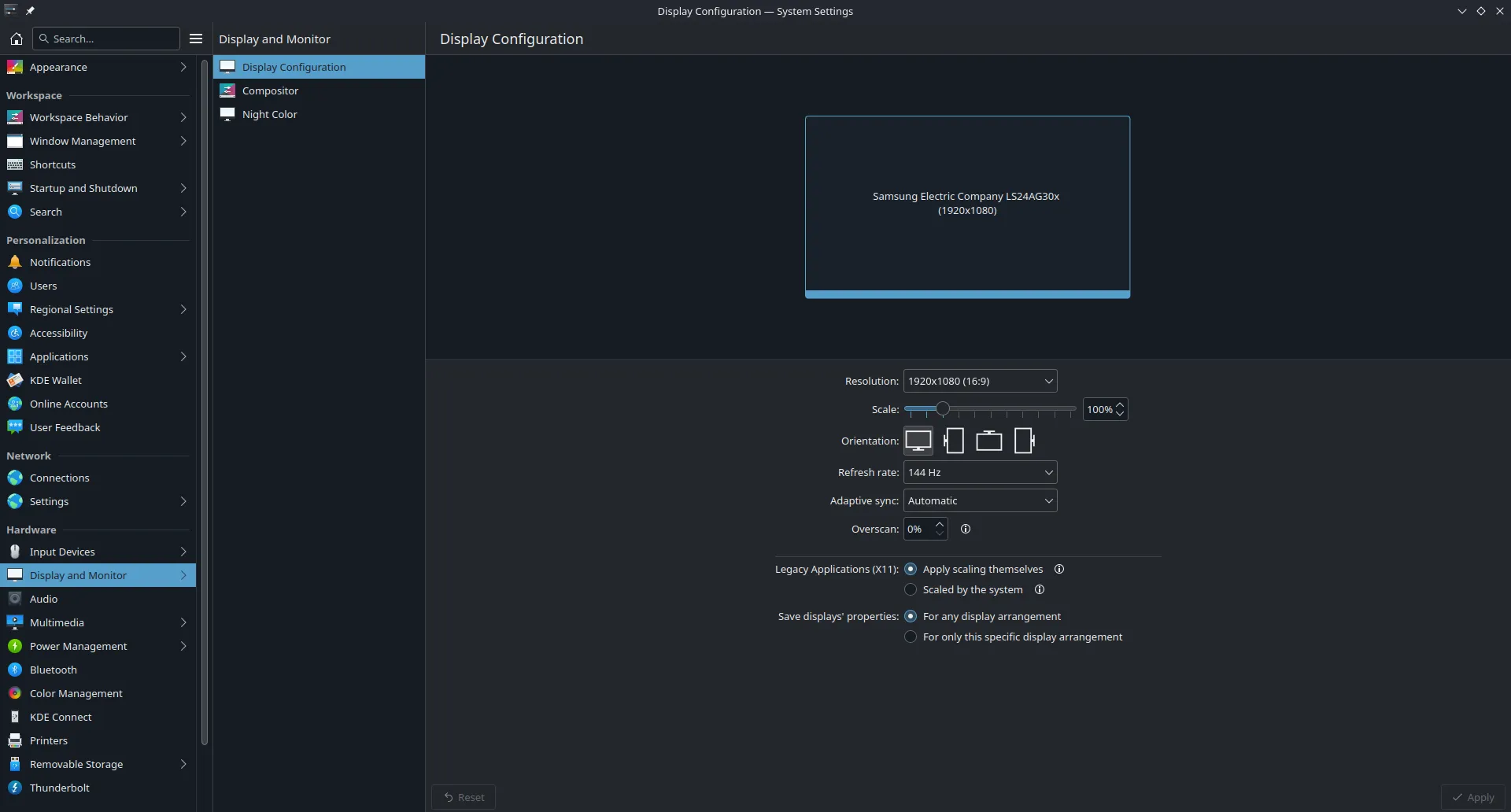
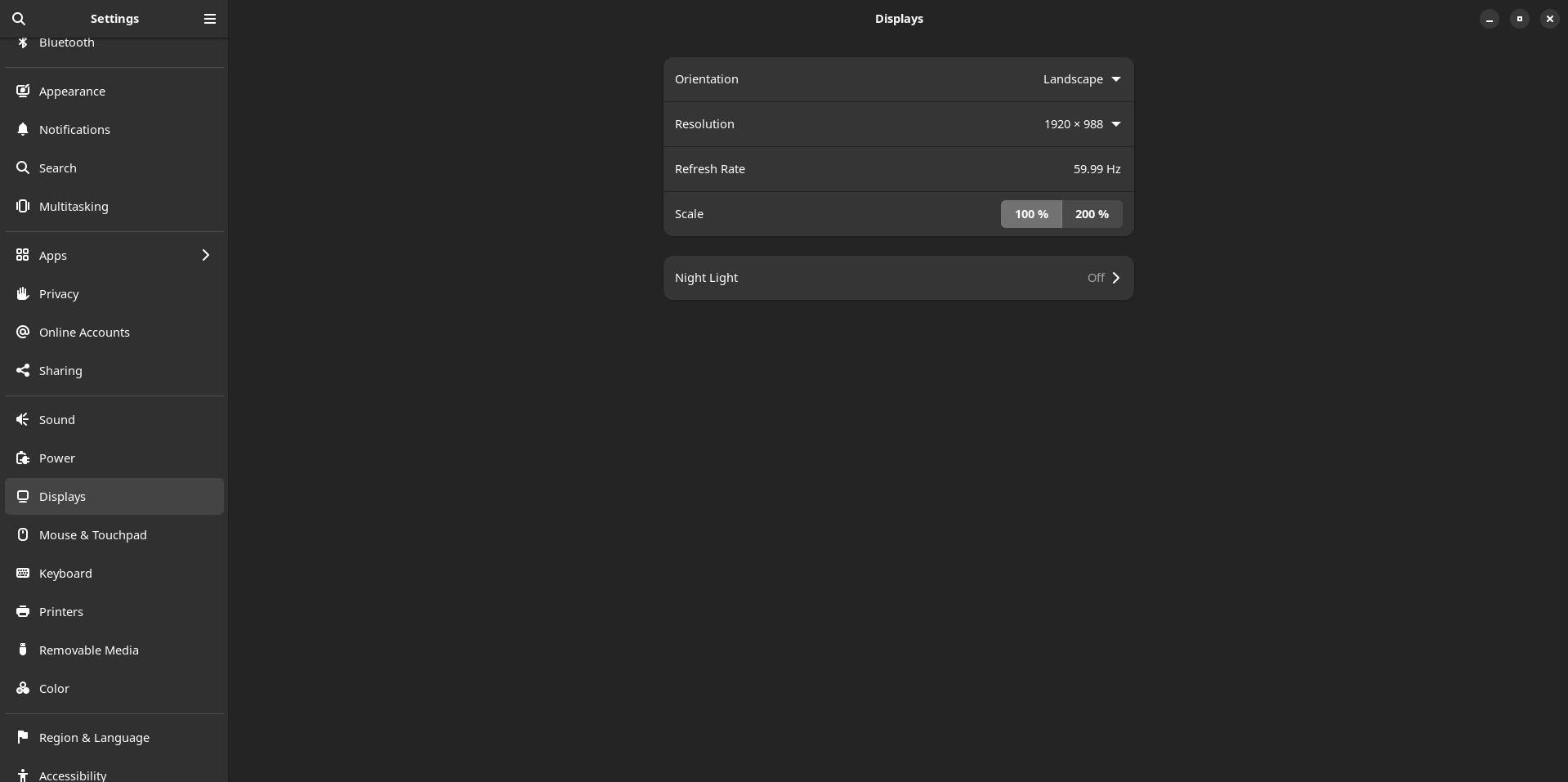
Configuring System Settings for KDE Plasma and GNOME
KDE Plasma's System Settings application
GNOME's Settings application
It is important to configure the system settings on a first boot to personalize your desktop especially if you notice the scaling is incorrect on first-boot.
Getting Started with Gaming on Bazzite
You have now installed Bazzite!
To get started with gaming, check out our Gaming Guide which covers:
- Installing and configuring Steam and Proton for Windows game compatibility
- Setting up Lutris and other game launchers (Epic Games, GOG, Amazon Games)
- Managing and modding games
- Troubleshooting common gaming issues
These guides will help make you ready for gaming on Bazzite.
Installing Additional Software
The Installing and Managing Applications documentation is useful to learn how to install additional software on Bazzite.
Don't fall into the apt trap and learn how to properly install & manage applications in Bazzite.
Video Tutorials
How to Calculate ISO SHA256 Checksum
https://www.youtube.com/watch?v=wUDbMJtR1sM
Dual Boot Setup with Secure Boot Enabled
https://www.youtube.com/watch?v=JxPsKhJGTrs
Issues Installing Bazzite?
View the Installation Troubleshoot Guide.
See also: Upstream Manual Partitioning Guide & Auto-Mounting Secondary Drives