安装后设置
首次启动设置
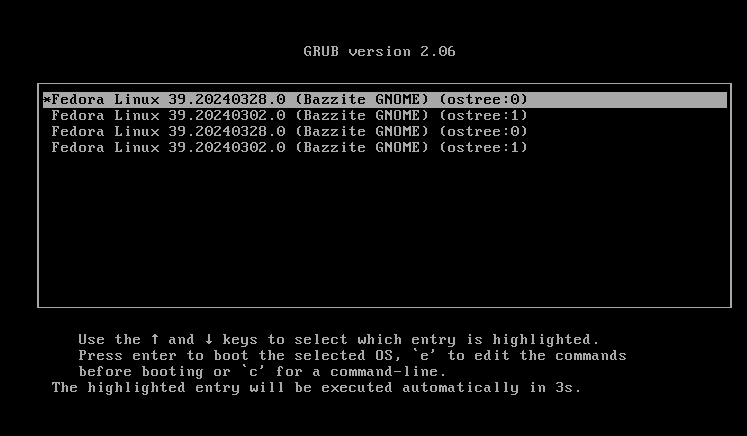
首次启动时会显示一个包含当前部署和上一个部署的界面。需要注意的是,如果遇到问题,可以通过 GRUB 菜单回滚汽核 OS 部署。
更多信息请阅读更新、回滚与变基文档。
设置 Steam 游戏模式(仅 Deck/掌机场景镜像)
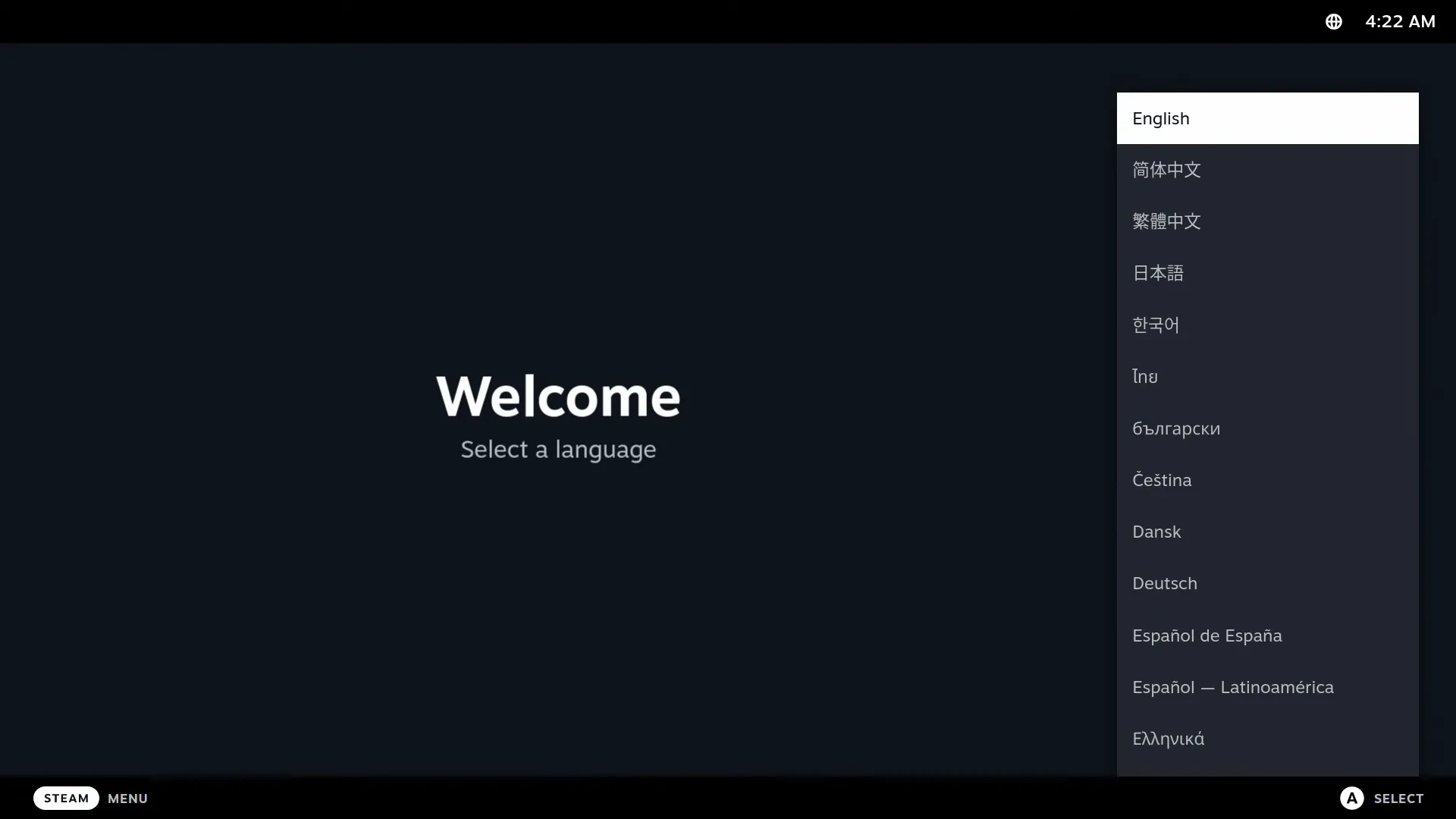
如果下载 ISO 前选择了 Steam 游戏模式,那么你使用的是 Deck/掌机场景版本。完成前面的步骤后,下一次启动会进入 Steam 游戏模式,并需要继续完成 Steam 的额外设置。
如需了解 HTPC/掌机镜像的更多信息,请阅读掌机与 HTPC 版本文档。
配置系统设置
首次启动后建议先配置系统设置,以便按你的习惯调整桌面;如果首次启动时缩放比例不正确,这一步尤其重要。进入桌面会话后打开系统设置应用即可开始配置。
缩放设置
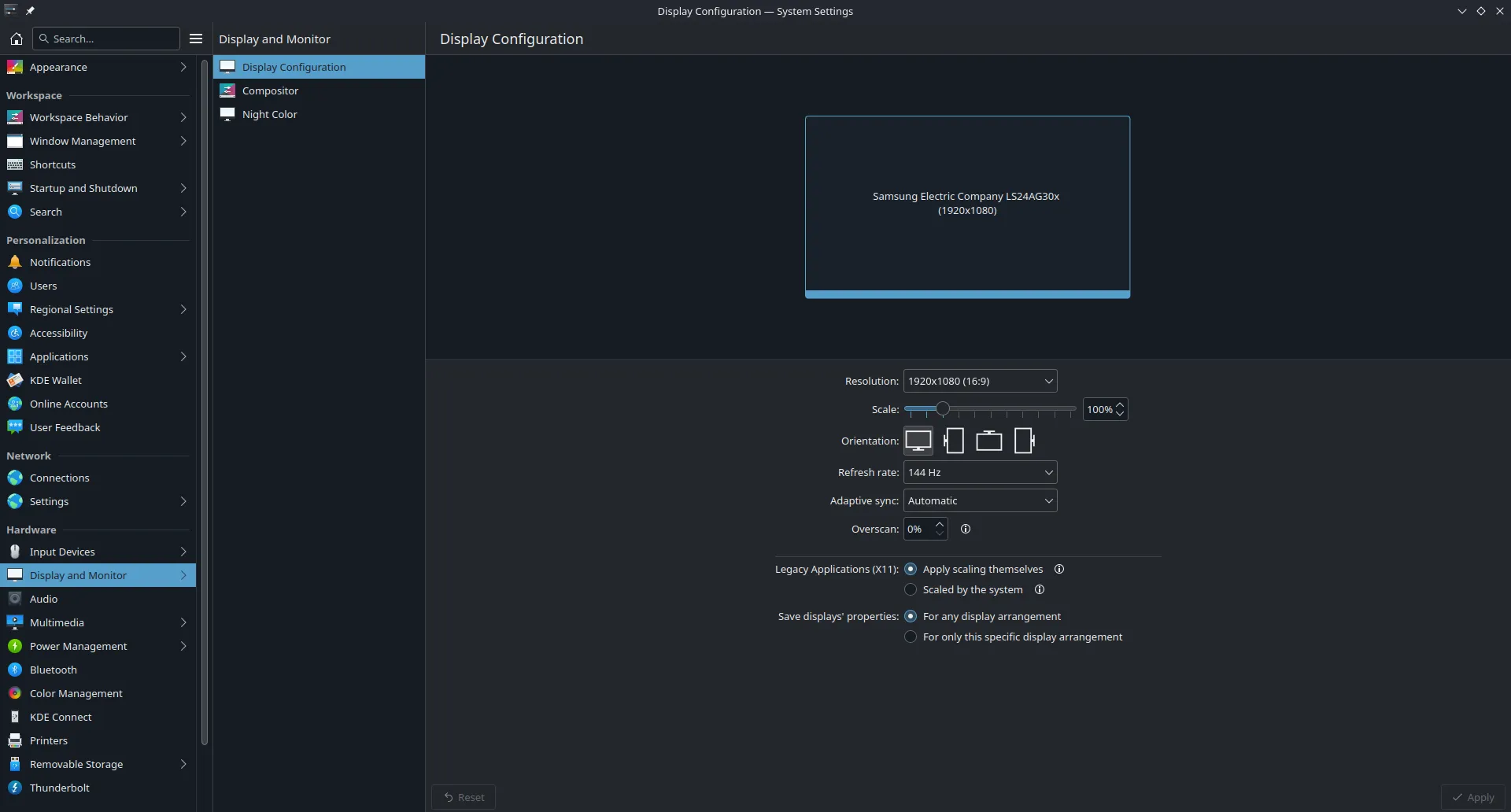 KDE Plasma 系统设置应用
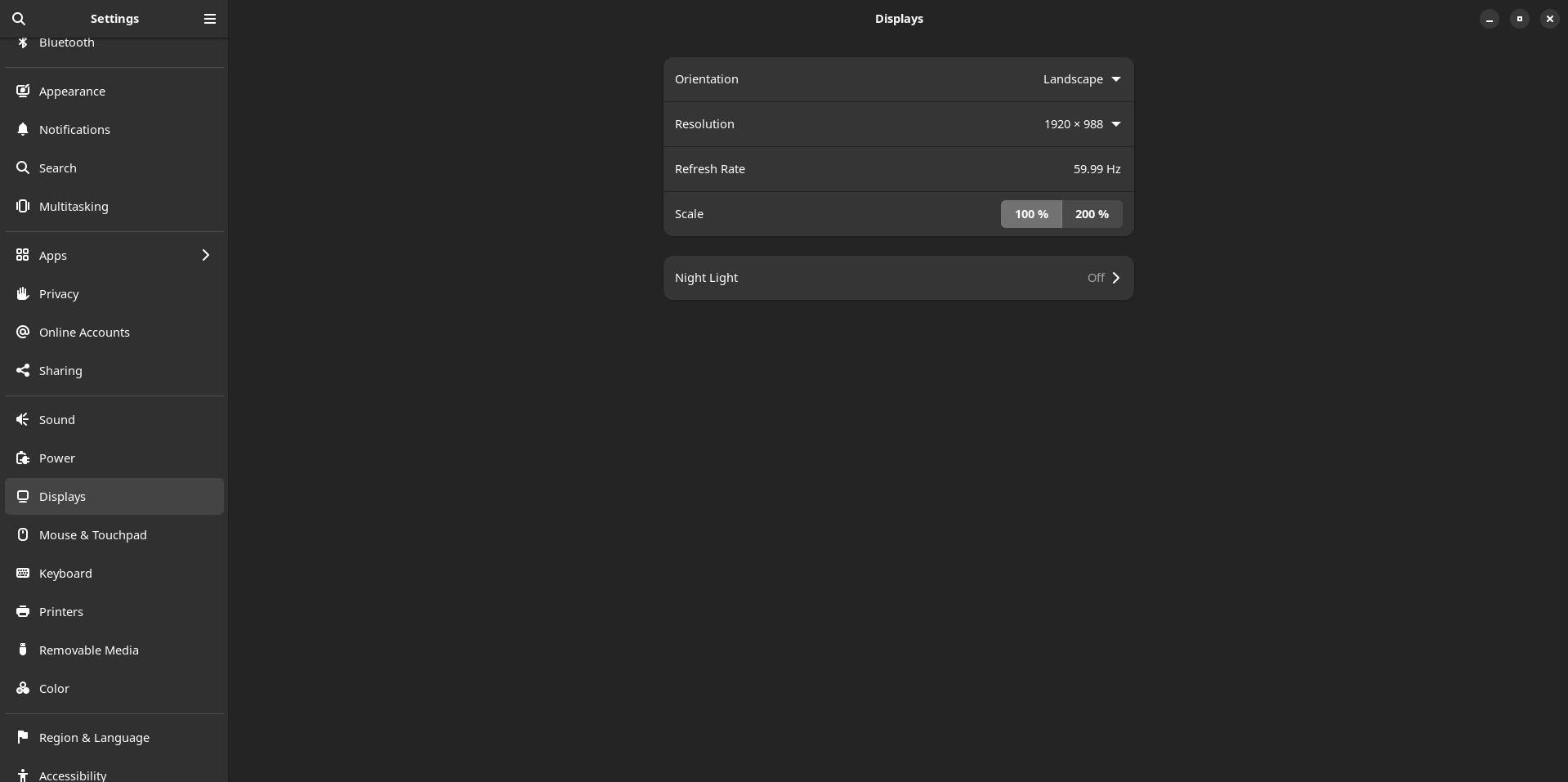 GNOME 设置应用
根据你的偏好调整系统设置。
修改默认密码
(如果没有在旧版 ISO 安装器中修改)
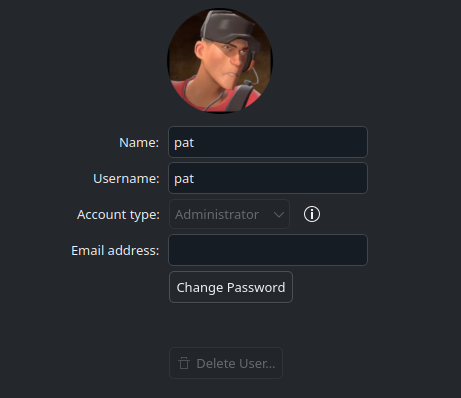
在桌面模式的设置中进入“用户”分类进行修改。
双系统安装后的配置
Note
这只适用于与 Windows 双系统启动的汽核 OS 用户。
在终端输入以下命令,让 GRUB 菜单同时显示 Windows 和汽核 OS,方便开机时选择:
将汽核 OS 作为主要启动项
如果 OS Boot Manager 将 Windows Boot Manager 设为第一启动优先级,安装后可能会直接进入 Windows,而不是汽核 OS。你可能需要在 BIOS 设置中修正启动顺序。
注意,GRUB 菜单可能不会显示。这种情况下,可以在开机时连续按 ↓ 键。
从 Steam 启动到 Windows
在 Steam 中添加一个用于启动到 Windows 的脚本。
Windows 双系统场景下扩展存储空间
Note
这是双系统使用一段时间后的参考内容。
观看这个视频教程了解如何扩展存储空间:
https://www.youtube.com/watch?v=uy8mi1pAj8E
Next Steps
Configure your system with the Bazzite Portal application
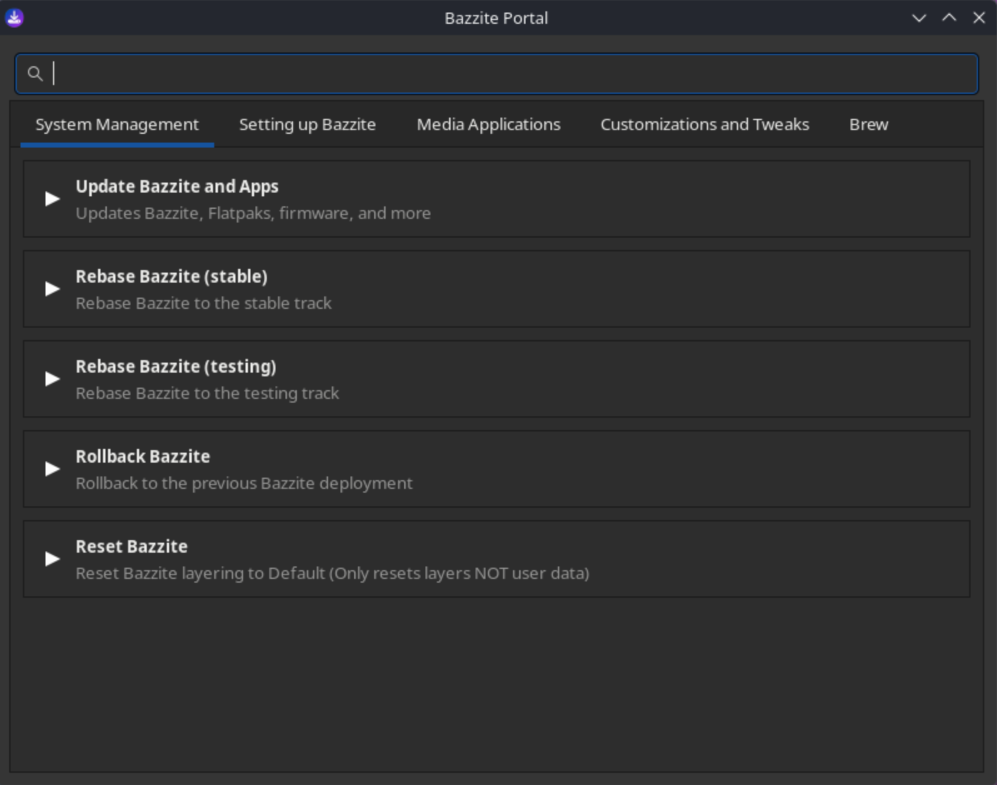
Familiarize yourself with the Bazzite Portal which does system maintenance, install a small subset of additional applications, and configure advanced system settings.
Install additional software with the Bazaar app store
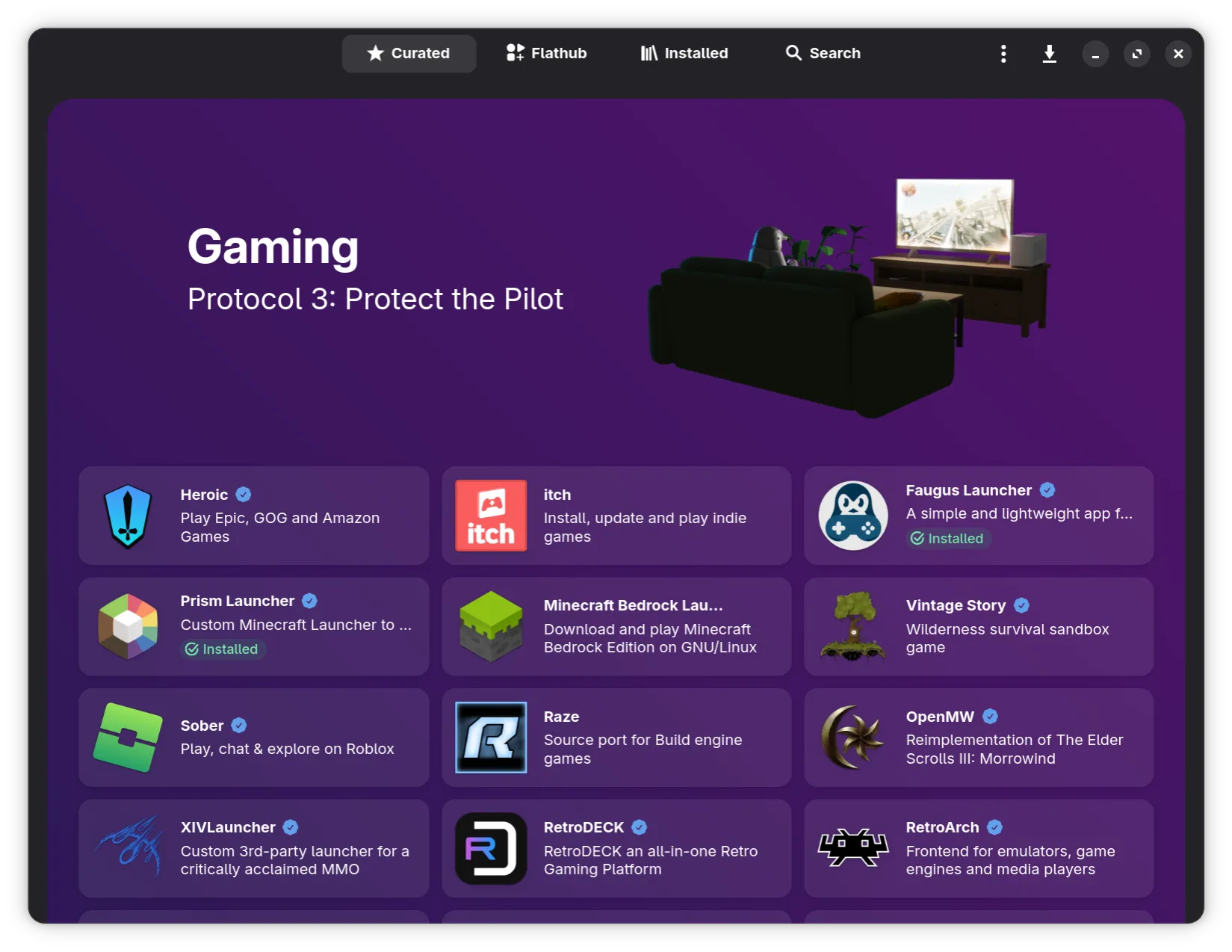
Install additional software for Bazzite in the Bazaar app store. This is the place where you will be getting most of your applications, but if you require something that isn't found here then look into the Installing and Managing Applications.
Ready to Game
You have now installed Bazzite!
Get started with gaming by reading our Gaming Guide which covers:
- Installing and configuring Steam and Proton for Windows game compatibility
- Setting up Lutris and other game launchers (Epic Games, GOG, Amazon Games, etc.)
- Managing and modding games
- Troubleshooting common gaming issues
Enjoy Bazzite and make sure to report any bugs you encounter so they can be fixed ASAP if possible.