自动挂载辅助磁盘
MicroSD 卡无需任何手动干预即可自动挂载。
视频指南
https://youtu.be/fN9lvkkrExI
设置自动挂载分区
-
打开 Gnome Disks(GNOME 磁盘),它的图标类似这样。
-
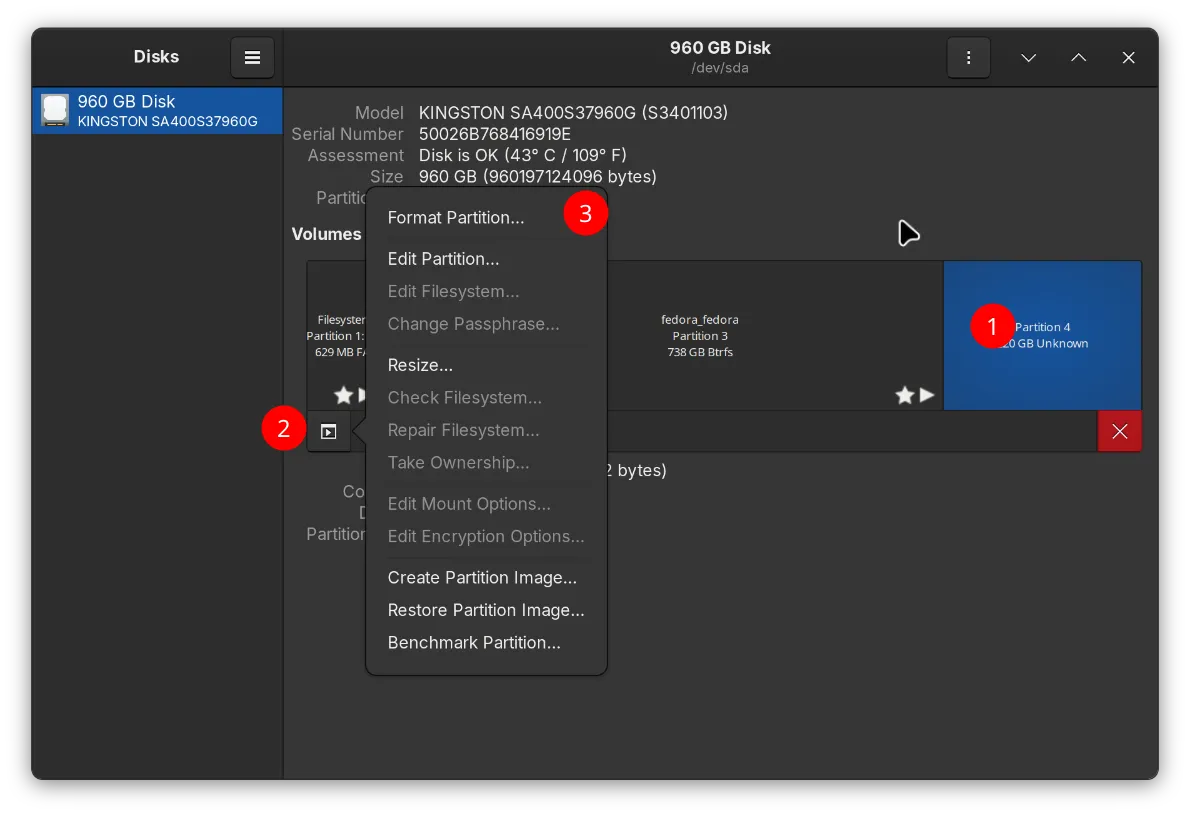
清空你要使用的分区,然后利用剩余空间创建一个新分区。
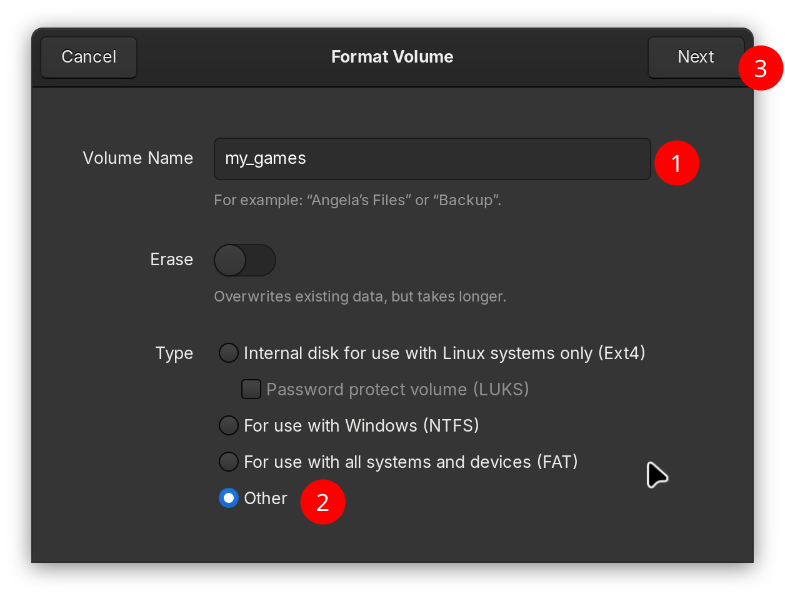
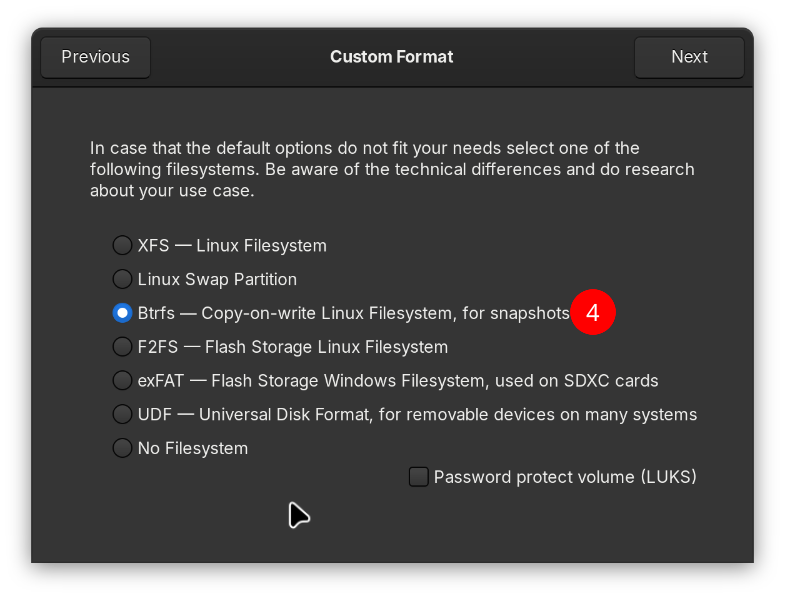
- 为该磁盘命名并选择文件系统。
AeroCore OS 仅支持 BTRFS/Ext4 文件系统用于反馈问题。
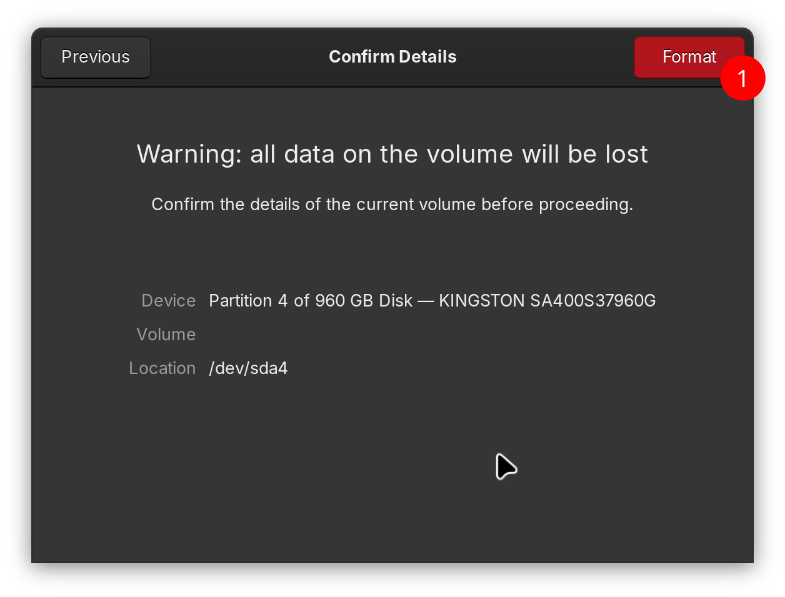
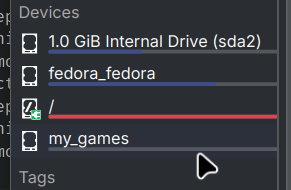
现在重启,你的分区应该会自动挂载。它应出现在 /run/media/system/PARTITION_NAME 下。
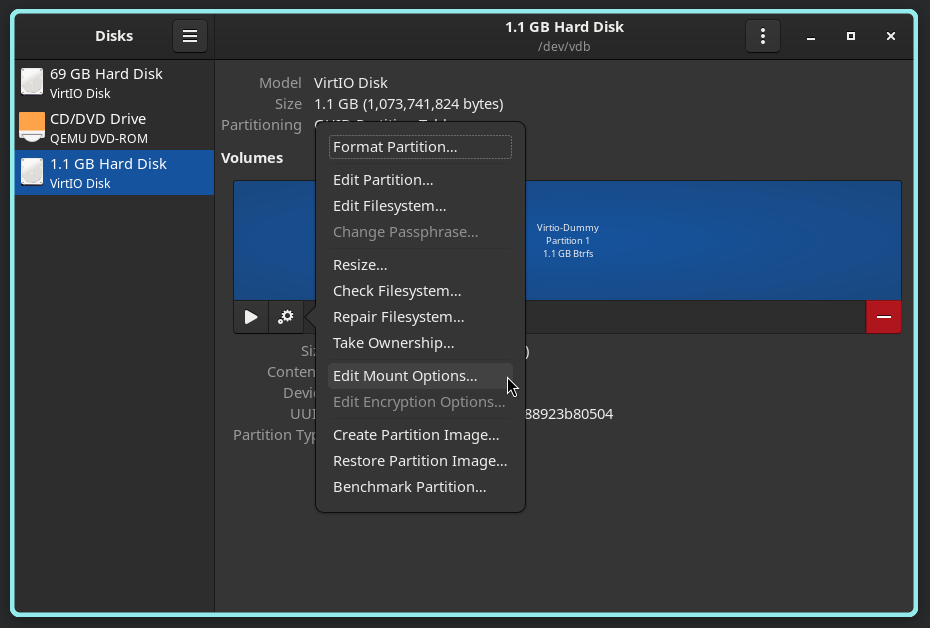
手动挂载
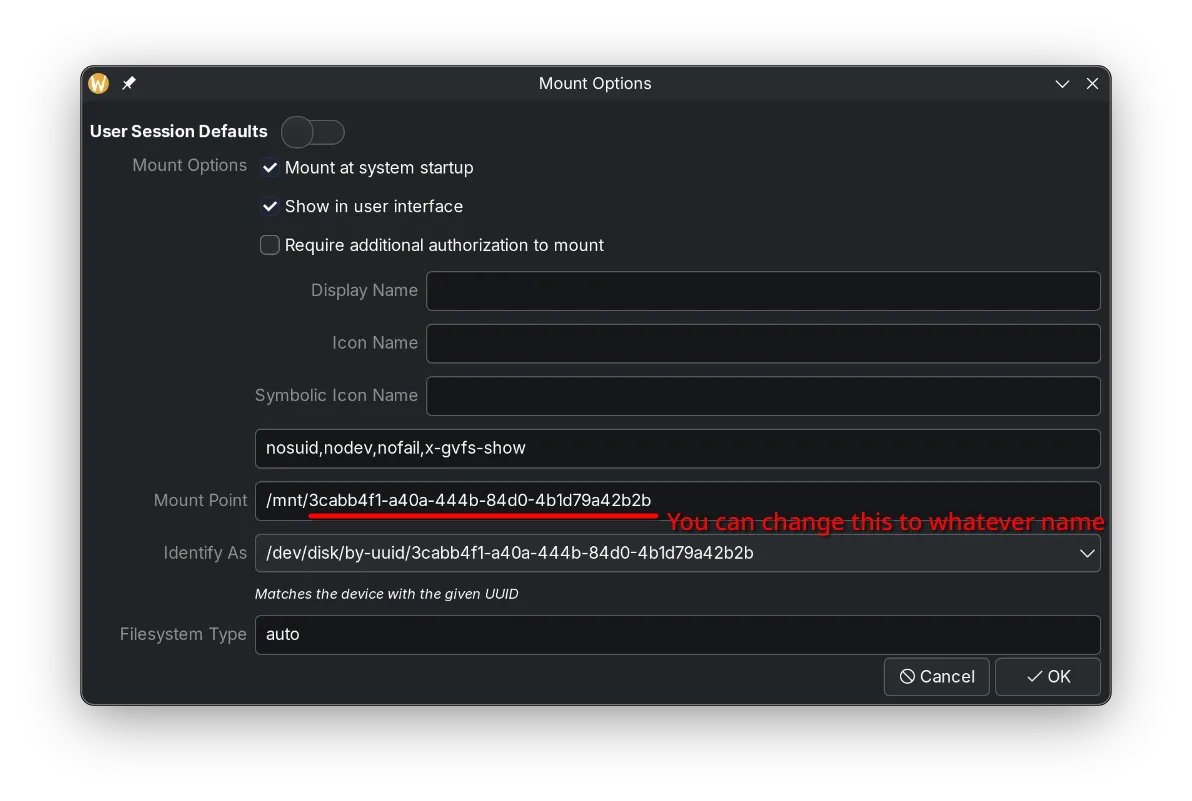
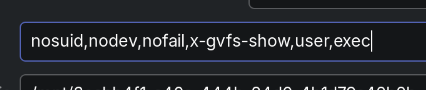
如果无法正常工作,可在末尾追加 ,user,exec。
故障排除
挂载后进入了 Emergency Mode?
本视频教程演示了如何从挂载失误中恢复。
https://www.youtube.com/watch?v=-2wca_0CpXY
磁盘是 BTRFS/ext4 却不会自动挂载(每次开机都要求认证才能挂载)
-
挂载目标磁盘。
-
打开 Gnome Disks 并切换到目标磁盘。
-
点击「附加分区选项」>「编辑挂载选项」。
-
确保「User Session Defaults」为 FALSE,且「Mount at system startup」为 TRUE,然后点击「Ok」。
-
对其他额外的磁盘重复上述操作。你可以通过查看 Fstab 文件、确认是否已添加相应的 UUID 来验证是否生效:
sudo cat /etc/fstab。