Distrobox Containers

Basic Usage
Run other minimal variants of popular Linux distributions in Bazzite inside of a container and access each distribution's packages without any of their dependencies and libraries affecting the host machine.
- Containers are not virtual machines.
- Containers are intended to be disposable and may run into issues where they need to be recreated.
- Using this method to obtain software requires knowledge of how traditional Linux operating systems install packages.
- Create a test container to familiarize yourself with basic Linux commands before diving in further.
Distrobox containers run sub-systems of other popular Linux distributions with access to their package managers (apt, dnf, pacman, etc.) and their package formats (.deb/.rpm) and any additional repositories like the AUR. Distrobox containers can be used for both development environments and installing applications that are not available in any of the other installation methods which can be exclusive to specific package managers.
Linux Distribution Examples:
| OS | Package Manager | Search for Packages |
|---|---|---|
| Fedora | dnf |
Fedora Packages / COPR Packages |
| Arch | pacman |
Arch Linux Packages / AUR Packages |
| Debian / Ubuntu | apt |
Debian Packages / Ubuntu Packages (PPA) |
| openSUSE | zypper |
openSUSE Packages |
| Void | xbps |
Void Linux Packages |
| Alpine | apk |
Alpine Linux Packages |
Arch Linux Distrobox Container Example:

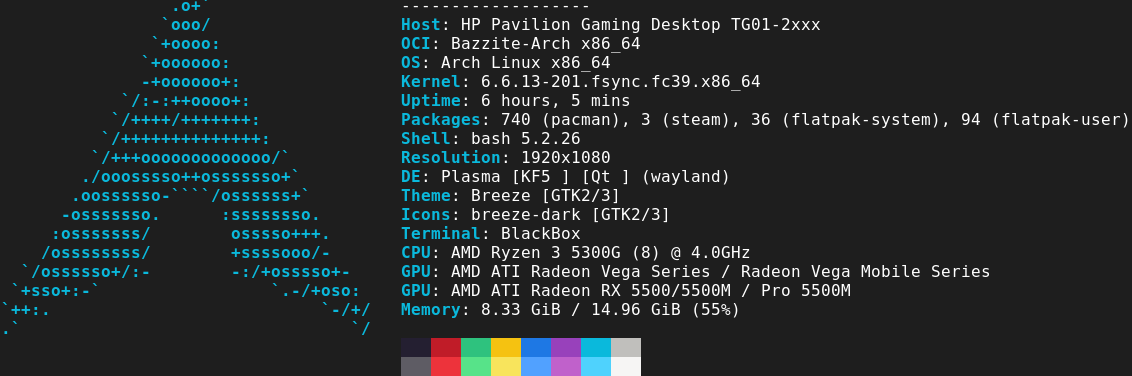
I use Arch (in a container) btw.
Use Cases
Distrobox containers can be used for both development environments and installing applications that are not available in any of the other installation methods which can be exclusive to specific package managers.
Distrobox Graphical Interface

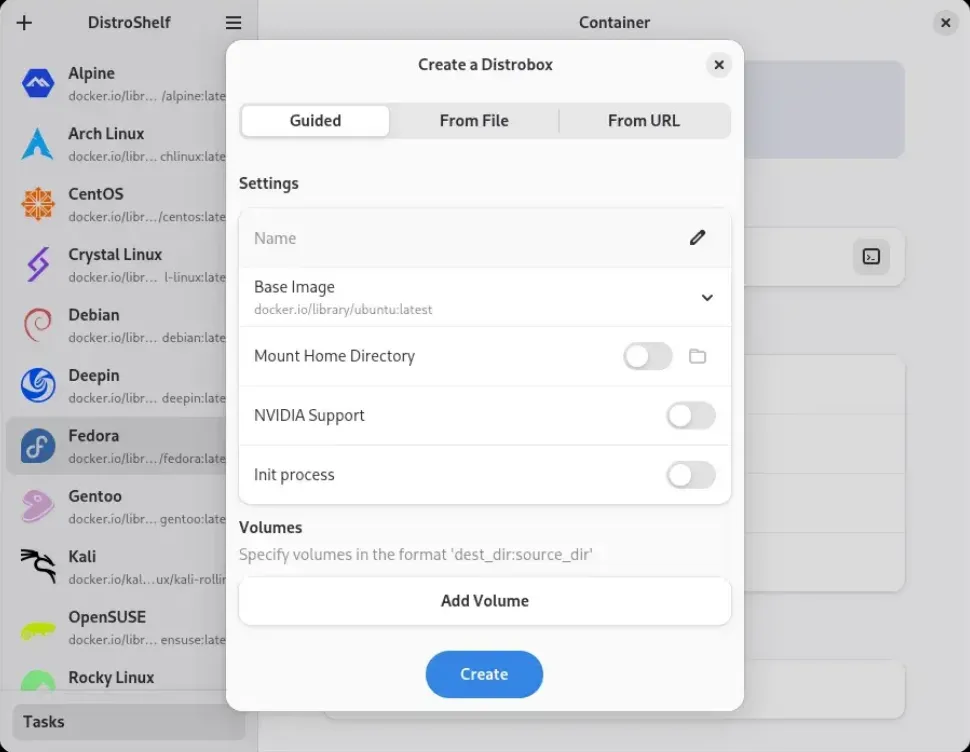
Distrobox containers can be created and managed graphically with DistroShelf which is pre-installed.
Desktop Integration
Applications with a graphical user interface can integrate with your system with an application shortcut by exporting the application using the below command in the container terminal window:
To "un-export" the app, enter the command below in the container terminal window:Manually Create Pre-Configured Distrobox Containers
Select the container that you want to use.
Advanced users: Declare your own custom Distrobox containers following the
distrobox-assembledocumentation.
Entering The Container
Swap between different containers in your host with the terminal or alternatively enter:
Removing Distrobox Containers
Delete containers graphically with DistroShelf.
Alternatively, use the command line:
Distrobox Video Guide
https://youtu.be/5m0YfIiypwA
Project Website
https://distrobox.it/