ScopeBuddy
这是什么?
- 一个作为 gamescope 桥接器的小脚本,免去为许多游戏复制粘贴冗长启动选项的麻烦。
- 允许你全局、按游戏、或根据 ScopeBuddy 或 Steam 运行所在模式来设置环境变量(env vars)和 gamescope 启动选项。
- 让你能够在游戏运行前自动执行 bash 脚本(这是配置文件工作机制的副作用)。
- 你只需将
~/.config/scopebuddy复制到新设备,即可在电脑间携带你的配置。 - 它也可作为在桌面模式下使用嵌套 gamescope 时修复 Steam 覆盖层(Overlay)的变通方案。
- 在桌面下以嵌套模式使用时修复 SteamInput。
如何使用
作为 gamescope 的替代品来修复 Steam 覆盖层:
如果你只想修复 Steam 覆盖层(以及某些游戏的 Steam Input),只需将游戏启动选项中的 gamescope 替换为 scb 或 ScopeBuddy 即可。
也就是将
变为
现在在桌面模式下对游戏使用 gamescope 时,你的 Steam 覆盖层就能正常工作了!🎉
在 Lutris 中使用
- 打开 Lutris,右键点击你想使用 ScopeBuddy 的游戏。
- 点击
Configure(配置) - 进入
System Options(系统选项)标签页,向下滚动到Game execution(游戏执行) - 在
Environment variables(环境变量)下点击Add(添加),将键设为SCB_APPID,值设为lutris/nameofgame。 - 在
Command prefix(命令前缀)中添加scb -- - 点击保存
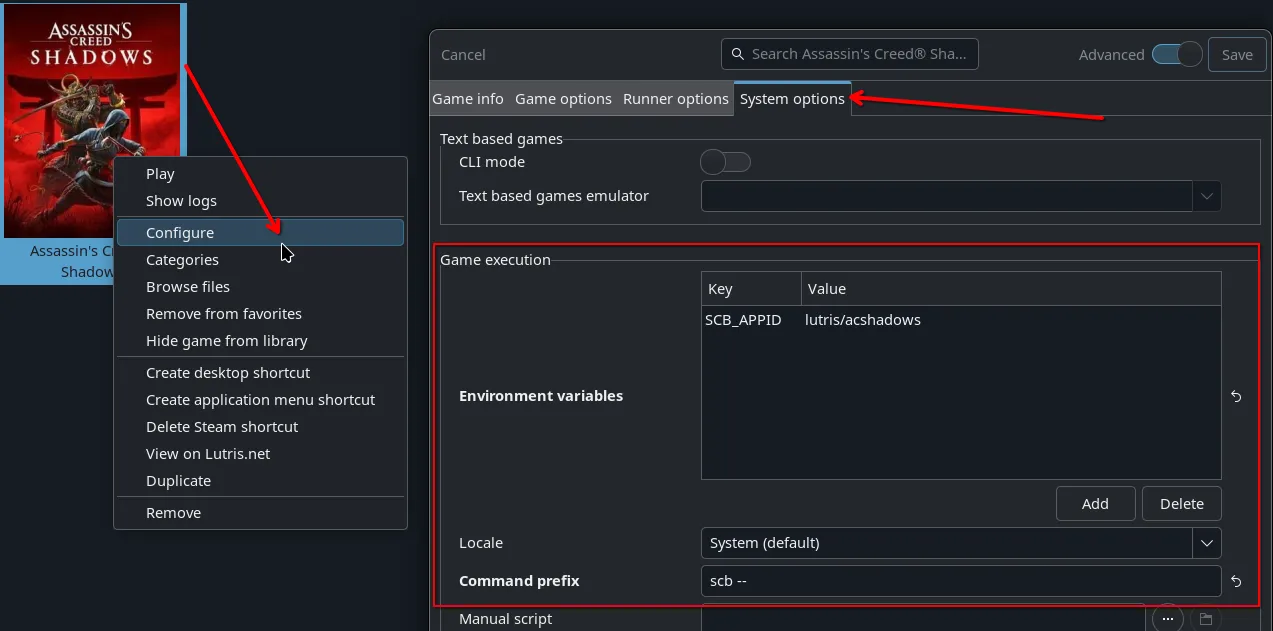
0 环境变量是可选的,但能让你利用按游戏划分的配置文件。
配置文件
设置全局默认值
如果你已用上述启动选项运行过游戏,ScopeBuddy 会在 ~/.config/scopebuddy/scb.conf 为你创建一份默认示例配置。
可能该文件不存在,这种情况下请创建一个空文件。
你可以在文件中添加环境变量并设置一组默认的 gamescope 参数。
上述 scb.conf 会让 ScopeBuddy 始终将 gamescope 的键盘布局设为挪威语,并以参数 -f -w 1920 -h 1080 -W 2560 -H 1440 -r 180 运行 gamescope
这意味着对于想在 gamescope 中运行的游戏,我们现在可以将启动选项缩短为
Note
--launcher-skip 只是示例启动选项
自动分辨率 / HDR / VRR
对于经常更改分辨率,或通过 Sunshine / Moonlight 或 Steam Remote Play 进行游戏串流的用户,你的显示属性可能频繁变化。
在 KDE 桌面上(早期 Gnome 支持已添加但存在限制),ScopeBuddy 支持配置自动注入主显示器的宽度、高度、HDR 状态或 VRR 状态。
在 ~/config/scopebuddy/scb.conf 配置文件中添加以下变量:
SCB_AUTO_RES=1 # 用当前显示器覆盖输出高度和宽度
SCB_AUTO_HDR=1 # 如果当前显示器已启用 HDR,则添加 --enable-hdr
SCB_AUTO_VRR=1 # 如果当前显示器已启用 VRR,则添加 --adaptive-sync
在 SCB_GAMESCOPE_ARGS 中使用 --prefer-output {your-device-here} 硬编码特定显示器时,这些自动值将从指定的偏好显示器检测。
使用 SCB_AUTO_* 变量的完整配置示例可能如下:
SCB_GAMESCOPE_ARGS="-f --mangoapp" # 向 gamescope 传递全屏 + mangohud 参数
SCB_AUTO_RES=1
SCB_AUTO_HDR=1
SCB_AUTO_VRR=1
当你的 KDE 显示器设置为 2560x1440 且 HDR 与 VRR 开启时,将生成如下 gamescope 命令:gamescope -f --mangoapp -W 2560 -H 1440 --hdr-enabled --adaptive-sync。
稍后,如果你将 KDE 显示器切换为 1920x1080、HDR 关闭、VRR 开启:gamescope -f --mangoapp -W 1920 -H 1080 --adaptive-sync。
这一切都无需修改 Steam 启动选项或 ScopeBuddy 配置中的任何一行!
额外配置文件
如果你对某款游戏使用不同的默认设置,例如想将此游戏从 1080p 超采样到 1440p,那么你可以准备一份独立的默认配置并让 ScopeBuddy 使用它。
在此示例中,在 ~/.config/scopebuddy/ 下创建文件 1080p.conf,并添加你想用于 1080p 超采样的专属默认值。
要使用这份新配置,你可以在 Steam 的游戏启动选项中通过设置 SCB_CONF 环境变量来告诉 ScopeBuddy 使用它
ScopeBuddy 现在将使用 1080p.conf 而非 scb.conf 来设置默认选项和环境变量。
Note
如果你向 ScopeBuddy 提供了任何参数,则 SCB_GAMESCOPE_ARGS 将被完全忽略!
这意味着使用启动选项 scb -f -- %command% 会从 scb.conf 加载环境变量,但不会使用任何配置文件中的 SCB_GAMESCOPE_ARGS。
为单个 Steam 游戏设置专属选项
在此示例中我们使用 Path of Exile 2,该游戏支持 HDR,因此我们想向 gamescope 追加 --hdr-enabled 参数。
首先我们需要找到 Path of Exile 2 的 Steam AppID,你可以在 Steam 中打开该游戏的属性,然后进入更新(Updates)部分找到。
在底部你会看到一些信息,你需要的是App ID 值,在我们的 Path of Exile 2 示例中它是 2694490。
现在在 ~/.config/scopebuddy/AppID/ 下创建 2694490.conf,并添加你的 Path of Exile 2 专属选项。
作为示例,我们将 SteamDeck 设为 0,因为假设该游戏强制启用仅与 Steam Deck 硬件相关的设置,所以我们关闭向游戏声明我们处于 Steam Deck 客户端上。
现在当 Steam 运行 scb -- %command% 时,ScopeBuddy 会先从 scb.conf 加载配置,随后加载 AppID/2694490.conf,在默认值之上应用额外选项(如果相同的变量被再次导出或更改,则替换默认配置中的先前选项)
注意 SCB_GAMESCOPE_ARGS 使用的是 += 而不是 =。
+=表示将其追加到当前变量的末尾。=表示替换变量中的所有内容。
这让我们可以复用在 scb.conf 中设置的 SCB_GAMESCOPE_ARGS
Note
你也可以使用 SCB_APPID="somecoolgame" 手动设置 AppID,以覆盖目前仅支持 Steam 的自动 AppID 检测。这可用于为其他启动器(如 Lutris 或 Heroic)中的游戏手动添加类似「AppID」的配置;例如 SCB_APPID="heroic/somecoolgame" 会使用配置文件 AppID/heroic/somecoolgame.conf。
常见问题(FAQ)
有用于配置的图形化应用吗?
有!flathub 上有一个:ScopeBuddy GUI
我可以在不使用 gamescope 的情况下使用 ScopeBuddy 的功能吗?
可以,只需在启动选项中使用 SCB_NOSCOPE=1 环境变量,如下所示
这会告诉 ScopeBuddy 不要启动 gamescope,并忽略所有配置中的 SCB_GAMESCOPE_ARGS。
默认配置文件也会设为 noscope.conf 而不是 scb.conf,除非你同时在启动选项中添加了 SCB_CONF 环境变量。
Note
如果你某款游戏永远不想使用 gamescope、但仍想使用 ScopeBuddy,你也可以在 appid 配置中导出 SCB_NOSCOPE=1。但这样使用时 noscope.conf 将被忽略,因为它是在 scb.conf 加载之后应用的。
ScopeBuddy 在 Steam 游戏模式(Steam Gaming Mode)中可用吗?
可以!
当 ScopeBuddy 检测到 Steam 运行在 Steam Gaming Mode 中时,它会强制 SCB_NOSCOPE=1 和 SCB_CONF=gamemode.conf,这样你就可以设置只在 Steam Gaming Mode 中使用的自定义选项,同时保留按游戏划分的选项!
这意味着你可以使用 ScopeBuddy 自动处理桌面模式下的嵌套 gamescope,以及在 Steam Gaming Mode 中不使用 gamescope。 再也不用在 Steam Gaming Mode 与桌面模式之间切换时手动添加和移除 gamescope 启动选项了!🎉
可以让 ScopeBuddy 处理游戏的启动选项吗?
当然可以!你只需为此使用 AppID 配置,然后通过在该游戏的 AppID 配置中添加以下内容来追加启动选项。
Note
+= 非常重要,因为你需要将启动选项追加到 %command% 之后,并且第一个 " 后必须以空格开头,否则游戏将无法启动。
可以让 ScopeBuddy 不应用其修复,仅作为 gamescope 管理器使用吗?
使用以下环境变量可改变 ScopeBuddy 的默认行为
SCB_APPENDMODE=1在scb.conf中设置此项后,你向 ScopeBuddy 提供的参数将被追加到任何配置文件中 gamescope 参数之后。SCB_STEAMARGIGNORE=0在scb.conf中设置此项后,如果向 gamescope 提供了-e或--steam参数,ScopeBuddy 将不再剥离它们,因为该标志当前会导致 gamescope 崩溃。SCB_NESTEDFIX=0在scb.conf中设置此项后,将禁用 ScopeBuddy 应用的 Steam 覆盖层和 SteamInput 修复(先问一下:它们其实是同一个修复)
Note
关于这些环境变量存在的原因,请参见 XKCD 1172
何时该对环境变量使用 export?
这取决于它是 ScopeBuddy 的内部变量还是游戏的全局变量。 经验法则是:除以下情况外,你应对每个环境变量使用 export
- 以
SCB_开头,这些都是 ScopeBuddy 的内部变量 - 变量名为
command,这是 ScopeBuddy 的内部变量,包含 Steam 中%command%里的所有内容(或--之后的所有内容)
等等……这些全都是 Bash!?
ScopeBuddy 的每个配置文件都是完整的 bash 脚本,在运行 gamescope 和游戏之前被 source。这意味着如果你是高级用户,可以做一些非常有创意的事情!你还可以设置 SCB_DEBUG=1,将最终命令写入 ~/.config/scopebuddy/scopebuddy.log
Note
Steam 会干扰启动环境,某些工具(如 curl)在环境中会带有不兼容的库,而 wget 则工作正常。请妥善测试你的脚本,并在配置末尾使用 2>&1 1>/tmp/myscript.log 将输出写入日志文件,便于测试期间调试。
你可使用的实用变量有
$SCB_NOSCOPE,如果 ScopeBuddy 以SCB_NOSCOPE=1启动,则会被设为 1$SCB_GAMEMODE,如果 ScopeBuddy 从 Steam 的 Steam Gaming Mode 中运行,则会被设为 1(这也意味着SCB_NOSCOPE=1)$SCB_CONFIGDIR,值为$HOME/.config/scopebuddy,这意味着你可以在配置中 source 其他配置(请不要制造无限循环!)$command,包含来自 Steam 的展开后的 %command% 变量以及你在其后添加的任何启动选项。
尽情发挥你的创意! 但请负责任!
Guild Wars 2 的 ArcDPS 更新器脚本示例
这是对你可能有的任何想法的启发?
为 Guild Wars 2 创建一份配置文件 AppID/1284210.conf
# Guild Wars 2
# Do not use gamescope for this title
SCB_NOSCOPE=1
# Use ArenaNet login instead of Steam
command+=" -provider Portal"

# Get the game directory from the expanded %command% variable from steam
GAMEDIR=$(echo $command | awk -F '" "' '{ print $12 }' | sed 's/\/Gw2-64.exe//')
# Run the arcdps updater script before game starts
"$SCB_CONFIGDIR/scripts/dl-arcdps" "$GAMEDIR"
然后创建脚本文件(记得将其设为可执行) scripts/dl-arcdps
#!/bin/bash
# Get the directory passed to the script
GW2_DIR=$1
# Get the latest md5sum for arcdps
NEWMD5SUM=$(wget -qO- https://www.deltaconnected.com/arcdps/x64/d3d11.dll.md5sum | awk '{print $1}')
# Get installed arcdps md5sum
MD5SUM=$(md5sum "$GW2_DIR/d3d11.dll" 2>/dev/null | awk '{print $1}')
# If they do not match, ask to update arcdps
if [ "$MD5SUM" != "$NEWMD5SUM" ]; then
    if zenity --question --text="Update ArcDPS?\nNew MD5: $NEWMD5SUM\nOld MD5: $MD5SUM"; then
        # Use wget to download arcdps as curl does not work in the steam environment
        wget -O "$GW2_DIR/d3d11.dll" https://www.deltaconnected.com/arcdps/x64/d3d11.dll
    fi
fi
视频概览
https://www.youtube.com/watch?v=p-uggidEjIM