跳转至

Dual Boot Preliminary and Post-Installation Setup Guide

Note

Make sure to read the Installation Guide for your device first before proceeding.

  1. Installing Bazzite with a shared drive.
  2. Installing Bazzite on a separate drive.
  1. (In Windows) Disable Bitlocker encryption and fastboot, and reboot.
  2. (In Windows) Resize the Windows partition with the Disk Management app to have enough space for Bazzite. Usually should look something like this: ] Source: diskpart.com
  3. Run the Bazzite installer with the automatic partitioning option.
  4. Reboot into Bazzite and run ujust regenerate-grub in the terminal to add Windows to the GRUB.
  1. (In Windows) Resize the Windows partition with the Disk Management app to have enough space for Bazzite. Usually should look something like this: Source: diskpart.com
  2. Run the Bazzite installer with manual partitioning
  3. Reboot into Bazzite and run ujust regenerate-grub in the terminal to add Windows to the GRUB.

When a dedicated drive is feasible, this method is recommended.

Install Bazzite on a separate internal or external drive.

  1. Install the other operating system on a drive (like Windows).
  2. Install Bazzite on a second drive.
  3. Set Bazzite as the default in your boot order (optional).

If you install Windows second, you should disconnect the Bazzite drive to prevent using the Windows installer of using its EFI partition.

You can also install Windows to an external drive with Windows-to-Go using Rufus to dual boot if you do not have an internal drive available.

If you install Windows after Bazzite, you can restore Bazzite's bootloader with the Bootloader Restoring Tool in the Live ISO.

Manual Partitioning Instructions

Only users who are dual booting on the same drive should use these instructions. Automatic partitioning is preferred in other cases.

Bazzite only supports the BTRFS filesystem for /.

If you need a tutorial video for manual partitioning, watch this tutorial at timestamp 9:10.

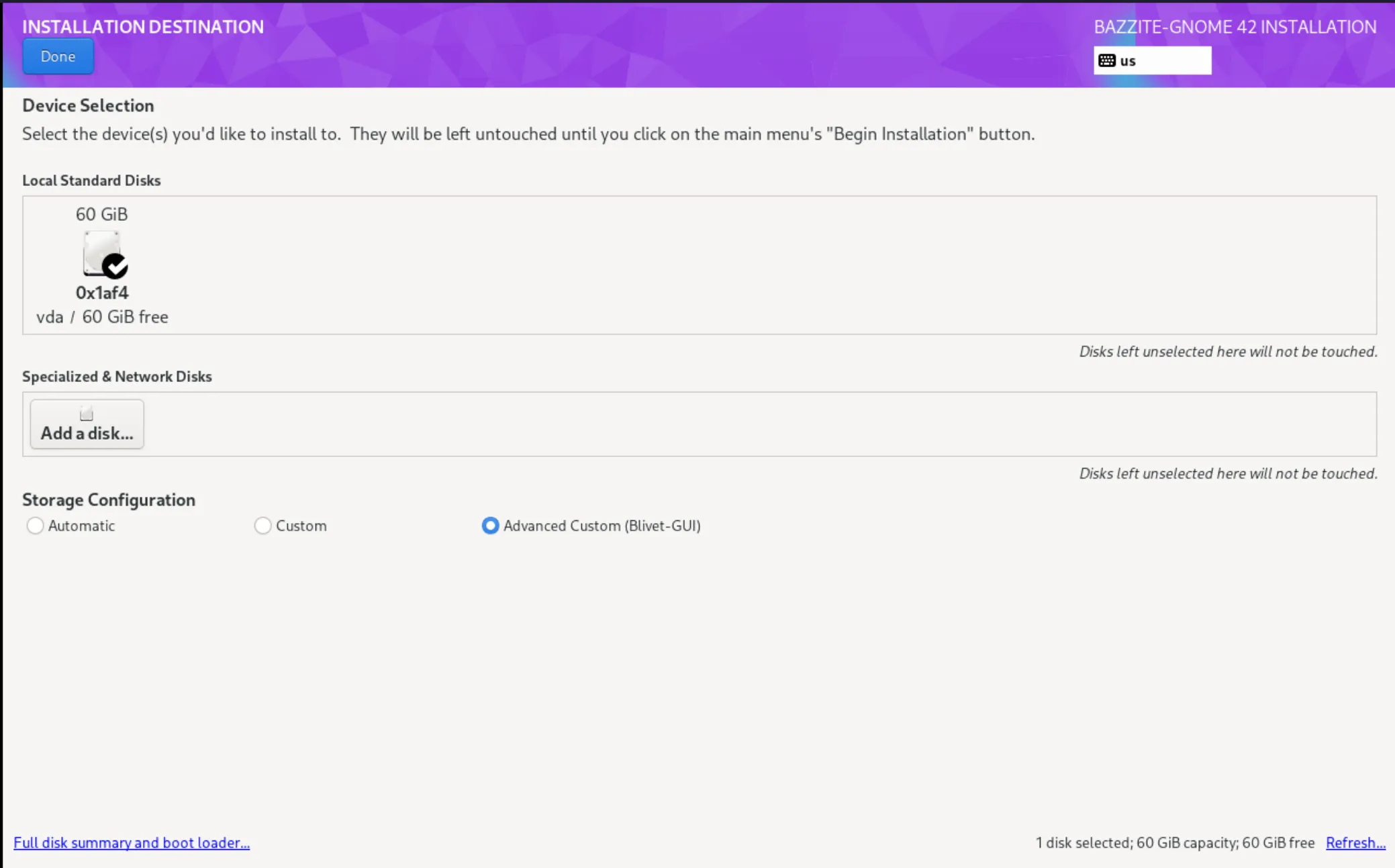
  1. Select Installation Destination
  2. Select Advanced Custom(Blivet-GUI) under Storage Configuration. Selecting manual partitioning
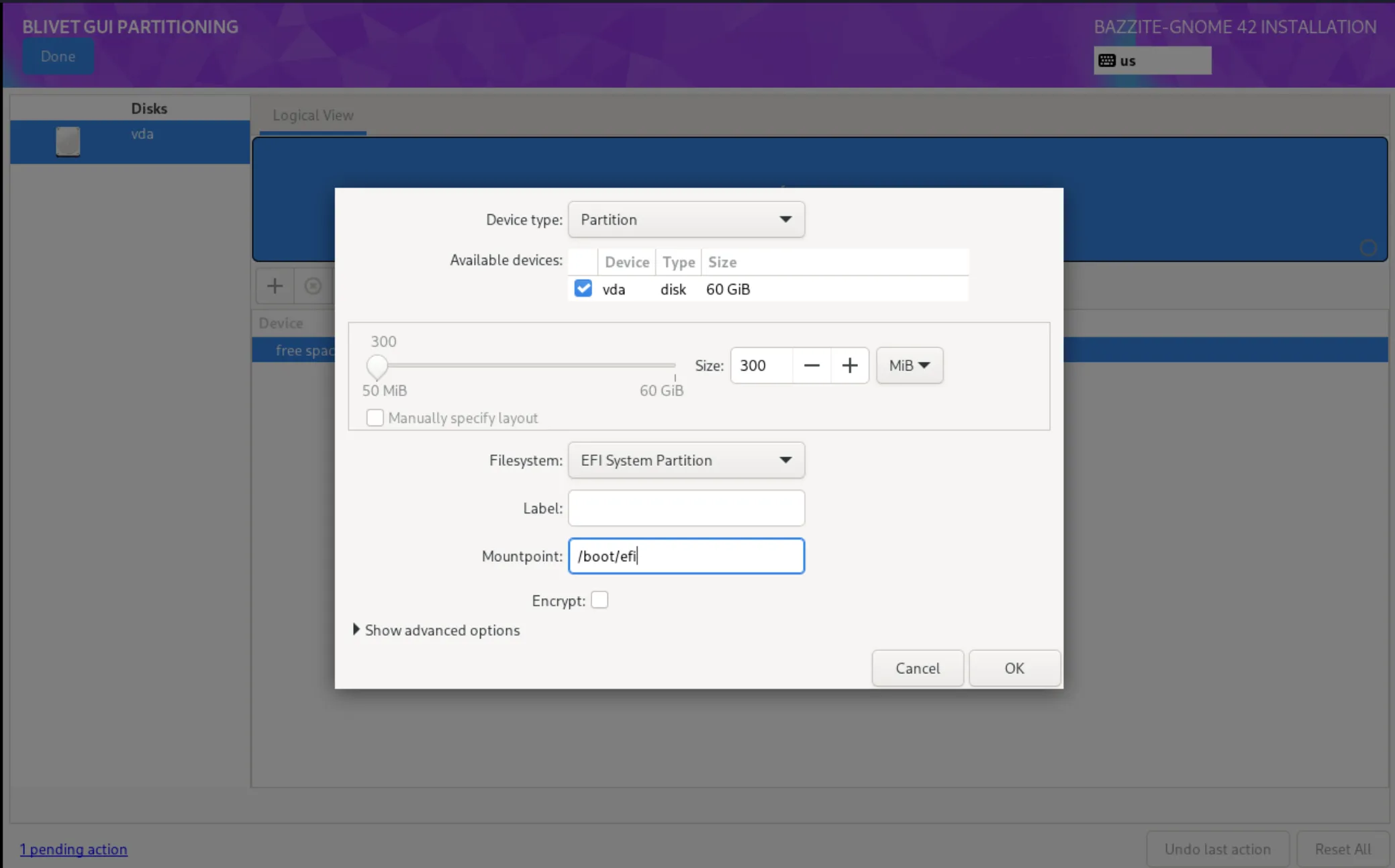
  3. Create the following partitions and devices:
  4. /boot/efi EFI partition
    mount point: /boot/efi
    format:      EFI system partition
    size:        300MB
    
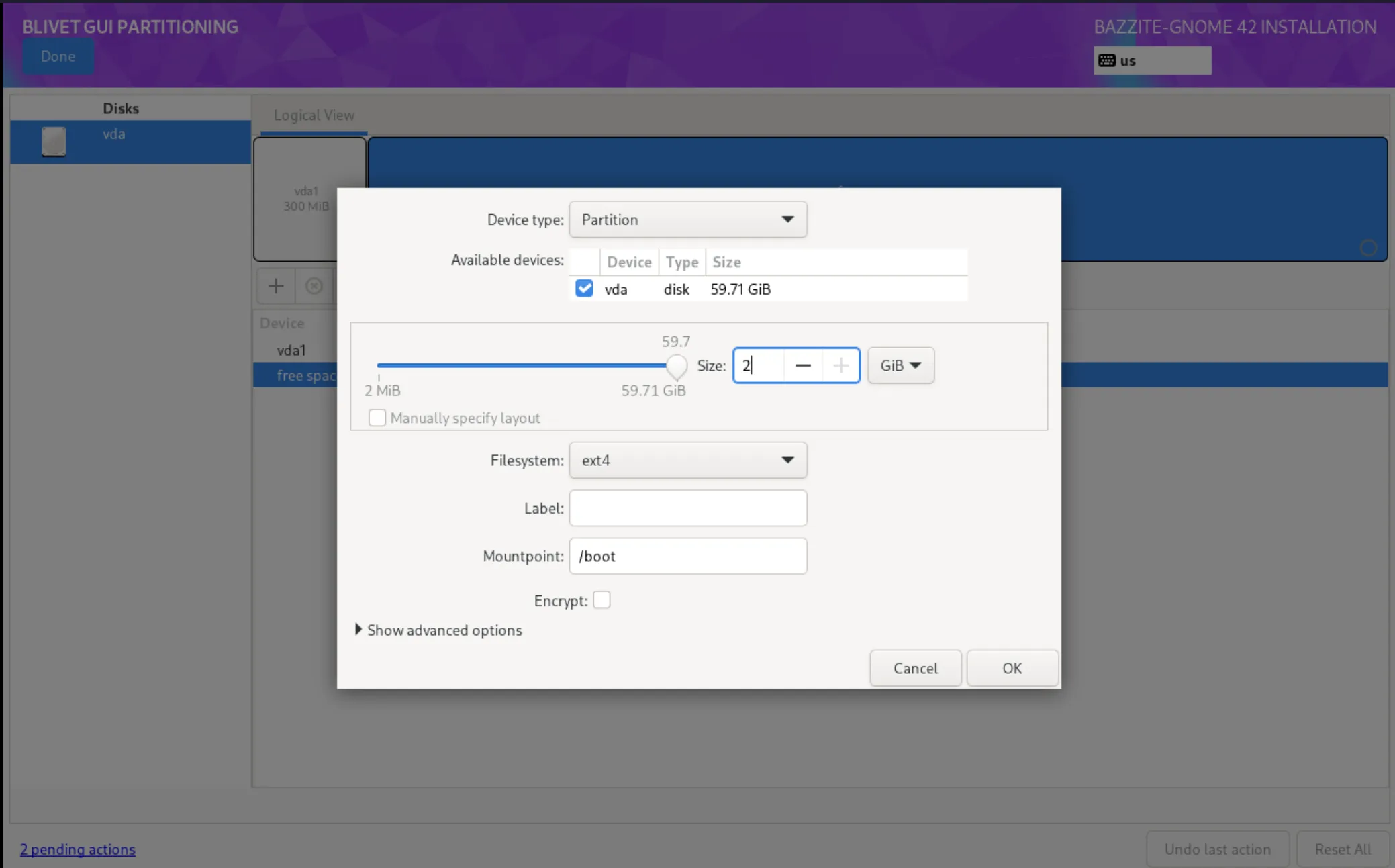
  5. /boot boot partition
    mount point: /boot
    format:      ext4
    size:        2GB
    
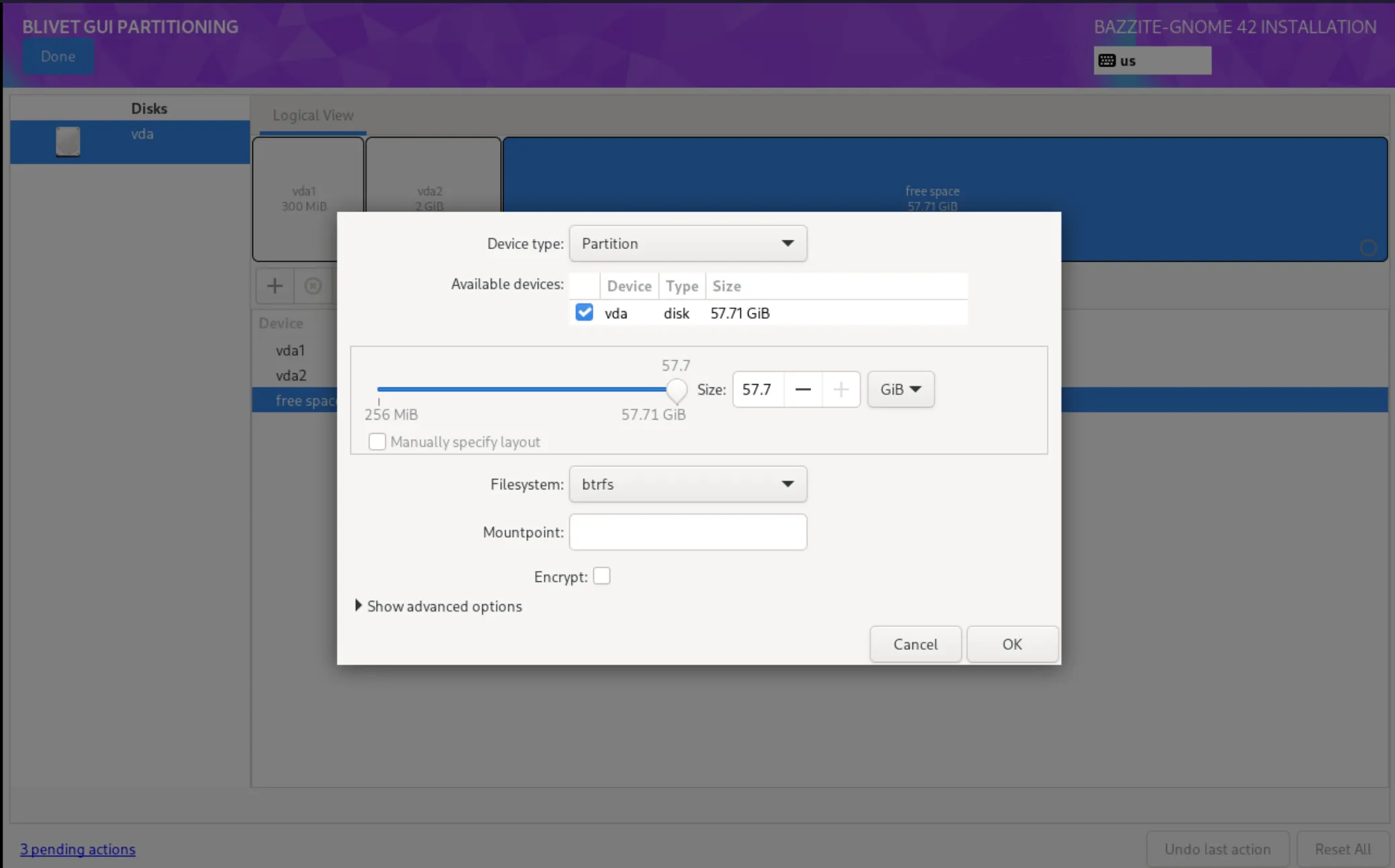
  6. btrfs partition btrfs partition
    mount point:
    format: btrfs
    size: [max]
    
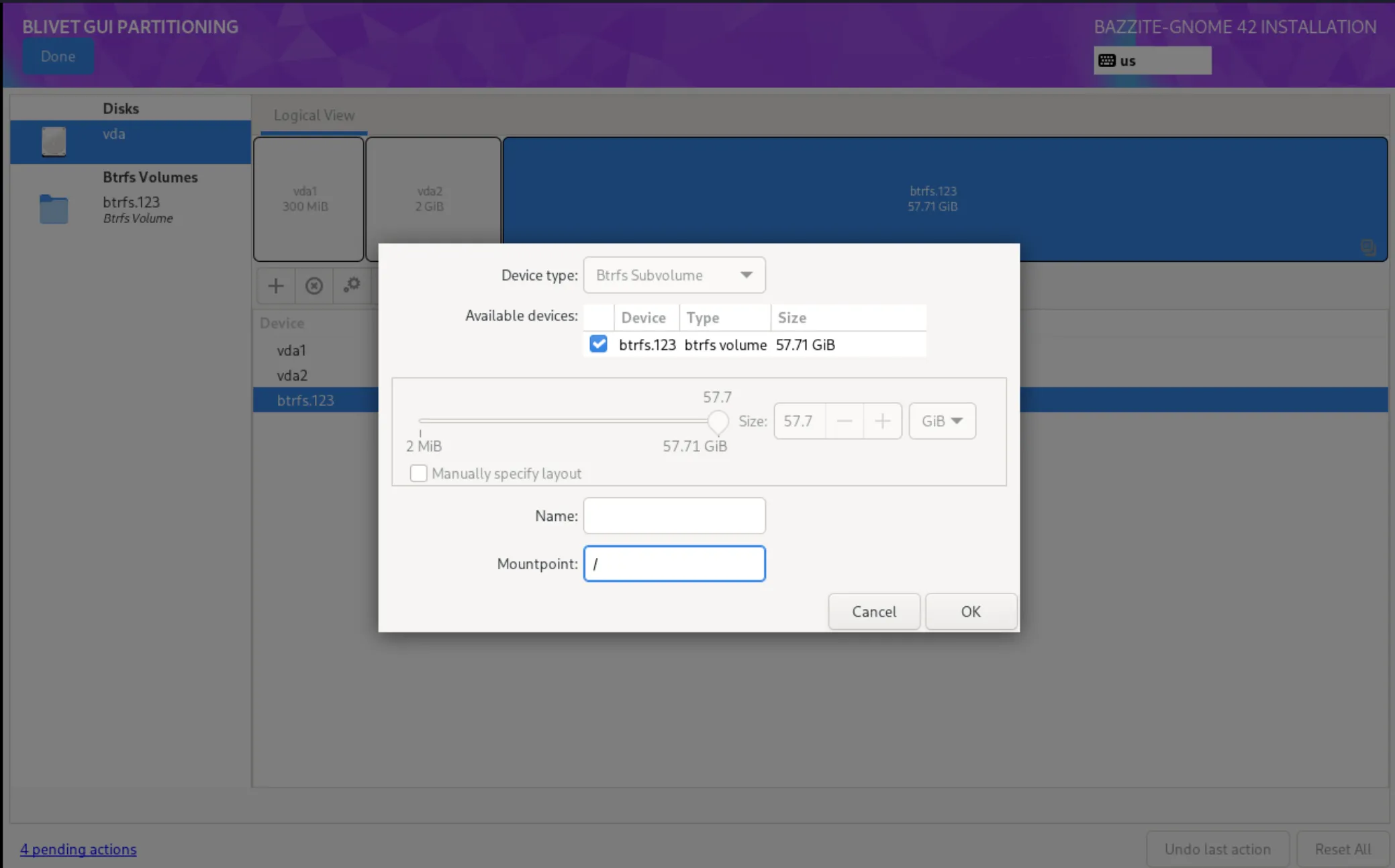
  7. / / subvolume
    mount point: /
    format:      btrfs (subvolume)
    
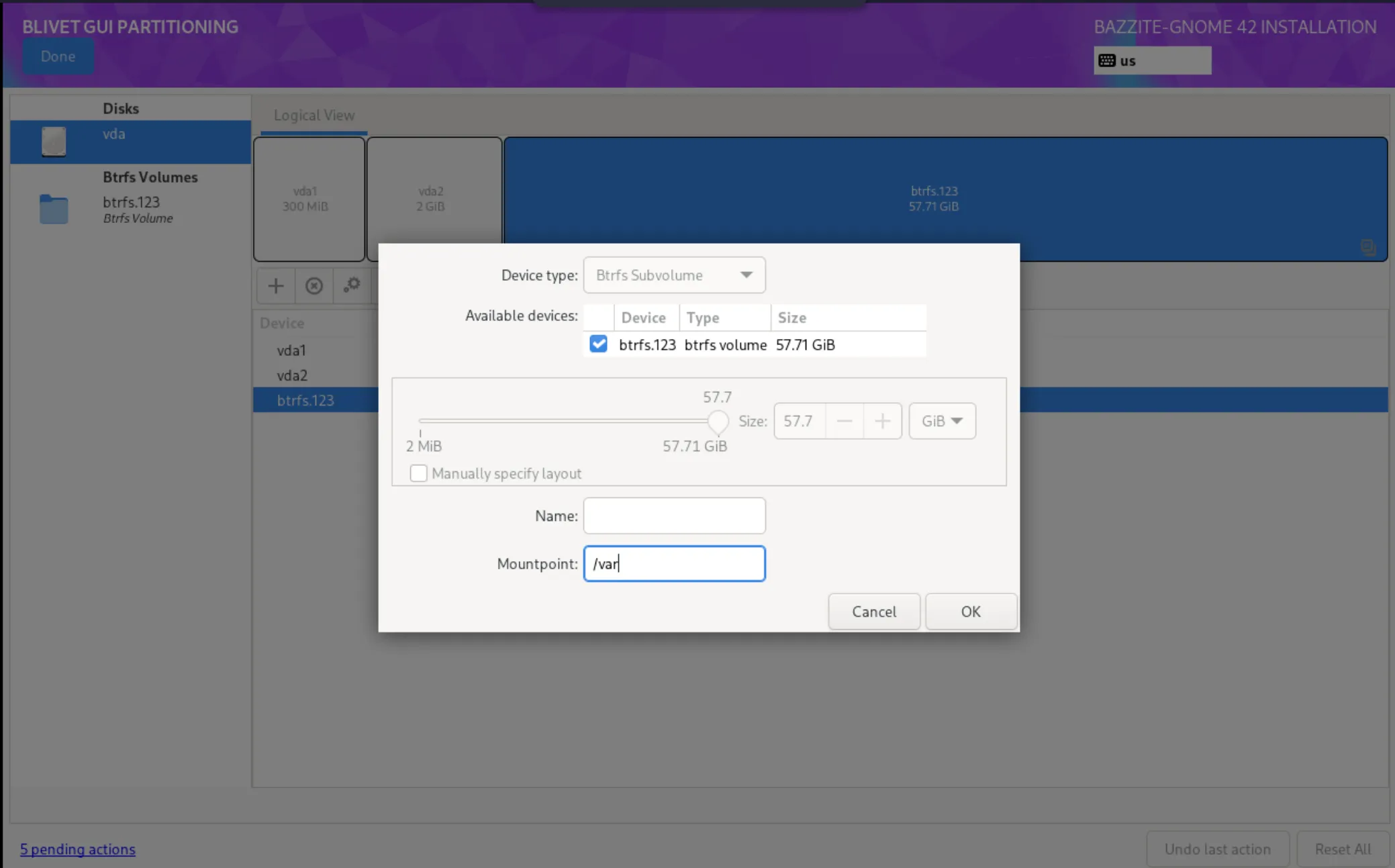
  8. /var /var subvolume
    mount point: /var
    format:      btrfs (subvolume)
    
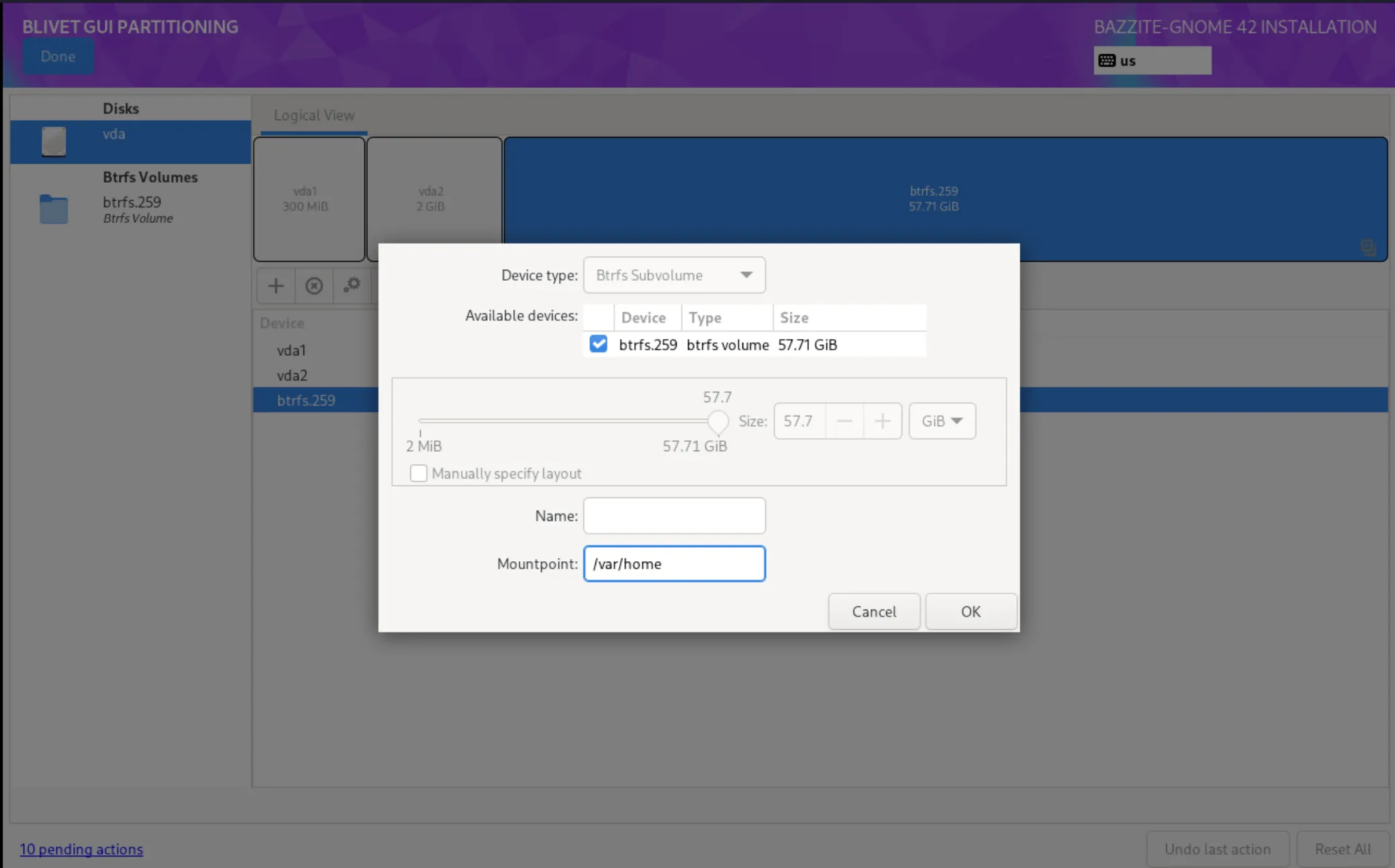
  9. /var/home /var/home subvolume
    mount point: /var/home
    format:      btrfs (subvolume)
    
  10. Select Done
  11. Select Accept Changes
  12. Continue with the installation.

Note about dual booting other distributions

For Fedora Atomic Desktop images on the same drive:

  • To dual boot another Fedora Atomic Desktop image (like Bluefin) installed alongside Bazzite, you must make an additional EFI partition and switch between them through your motherboard's UEFI boot menu.

For dual booting on separate drives:

  • Use your motherboard's UEFI boot menu as the GRUB bootloader may not recognize each boot entry correctly.

Note

Dual booting with other distributions, especially non-atomic Fedora, is not officially supported. It is recommended to use your motherboard's UEFI boot menu or to forgo dual booting entirely to avoid unexpected issues. If something does go wrong, restore Bazzite's bootloader using the Bootloader Restoring Tool in the Live ISO.

Dual Boot Post-Configuration Setup

Show both your Windows and Bazzite installations in the GRUB menu to select from at boot by entering this command into the terminal:

ujust regenerate-grub

Bazzite as Primary Boot

If the OS Boot Manager has set Windows Boot Manager to be the first boot priority, then this may result in booting directly into Windows after the install instead of Bazzite. You may have to fix this in your BIOS settings.

Take note that the GRUB menu might not show up. In such case, spam the key when booting up.


Boot into Windows from Steam

Adds a script in Steam to boot into Windows.

ujust setup-boot-windows-steam

Expanding storage size in a Windows dual-boot scenario

Note

This is for future reference after dual-booting for a while.

Watch this video tutorial on how to expand the storage:

https://www.youtube.com/watch?v=uy8mi1pAj8E